
DewWow Org Launcher A Salesforce backup, data loader and free duplicate finder for your Mac
Find duplicate records on any object, and merge Accounts, Contacts and Leads. Finding and merging duplicates is included, and it is free. Data Backup copies your records and files to your own Mac on a schedule, in place of the Weekly Data Export, for $10 a month after a 14-day free trial. Open any org in one click, query and export to Excel, load a spreadsheet back in, and see what changed in Setup.
1.1.17 · 12.3 MB · macOS 14 or later · Apple Silicon and Intel
Signed by DewWow and checked by Apple, so there are no steps in System Settings. How to install
Org Launcher for Windows is here
It reads the Salesforce orgs you have already signed in to with the Salesforce CLI on that PC, so they are in the list the first time you open it. Not everything on this page is in the Windows version — see what is included.
Download for Windows 1.0.0 · 45.6 MB · Windows 10 version 1809 or later, 64-bit
A Mac app for Salesforce admins, developers, and consultants, now on Windows too.
Find and merge duplicates, included
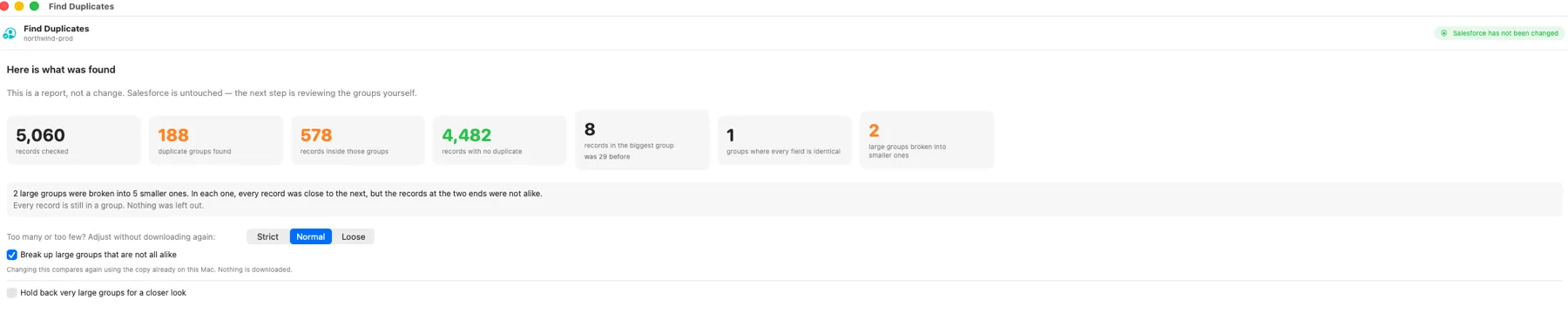
Finding them is a report, not a change. You get a count of what matched, how big the biggest group is, and how many records were left alone — and Salesforce is untouched until you say otherwise. If the matching is too keen or too shy, adjust it and it compares again using the copy already on your Mac, without downloading anything a second time.
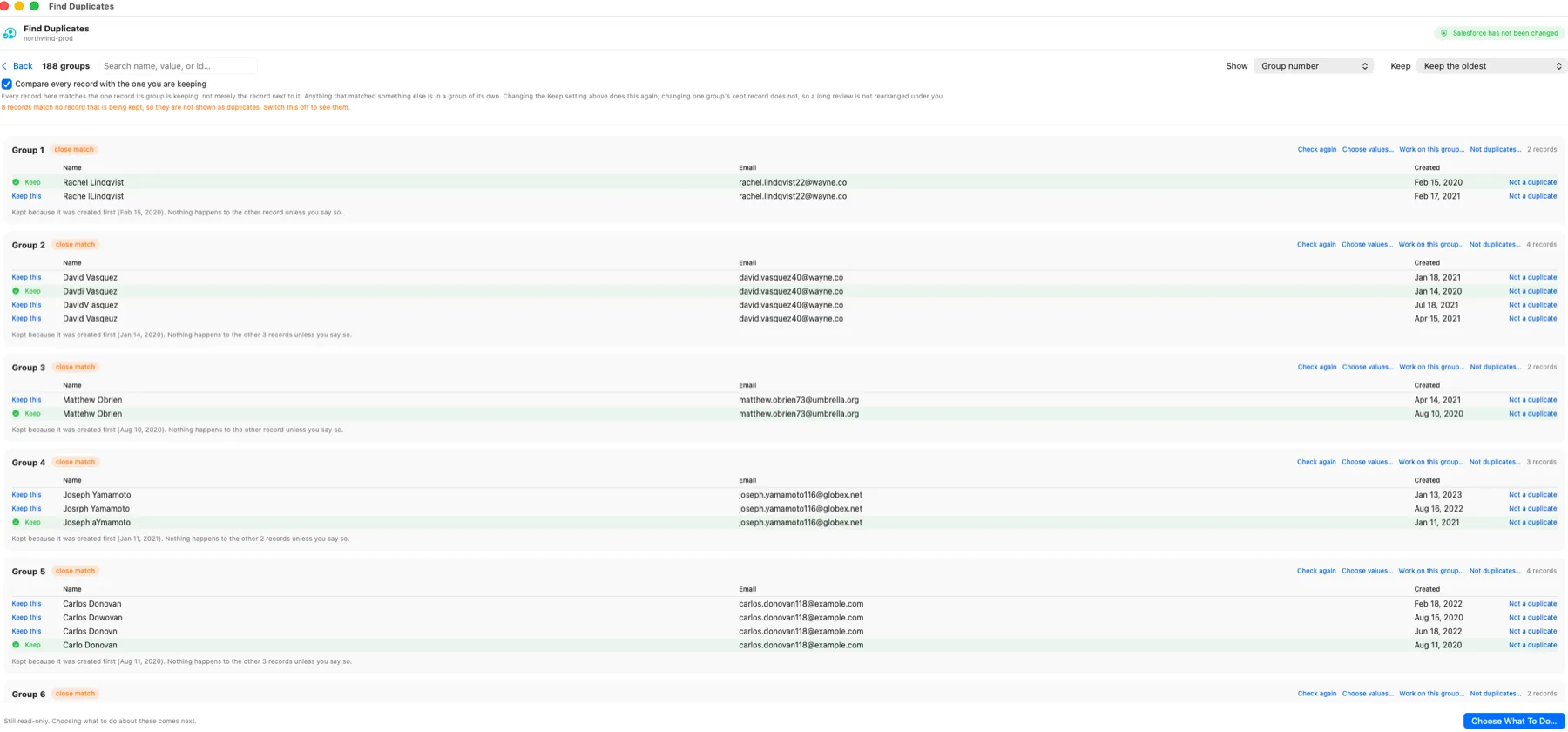
See every group before you decide
Every group is laid out with the record being kept, why it was kept, and a line saying nothing happens to the others unless you say so. Most typos, swapped letters and missing letters are caught too — matching is not just exact matches. Mark anything that is not really a duplicate and it drops out.
Back up Salesforce to your own Mac, in place of the Weekly Data Export
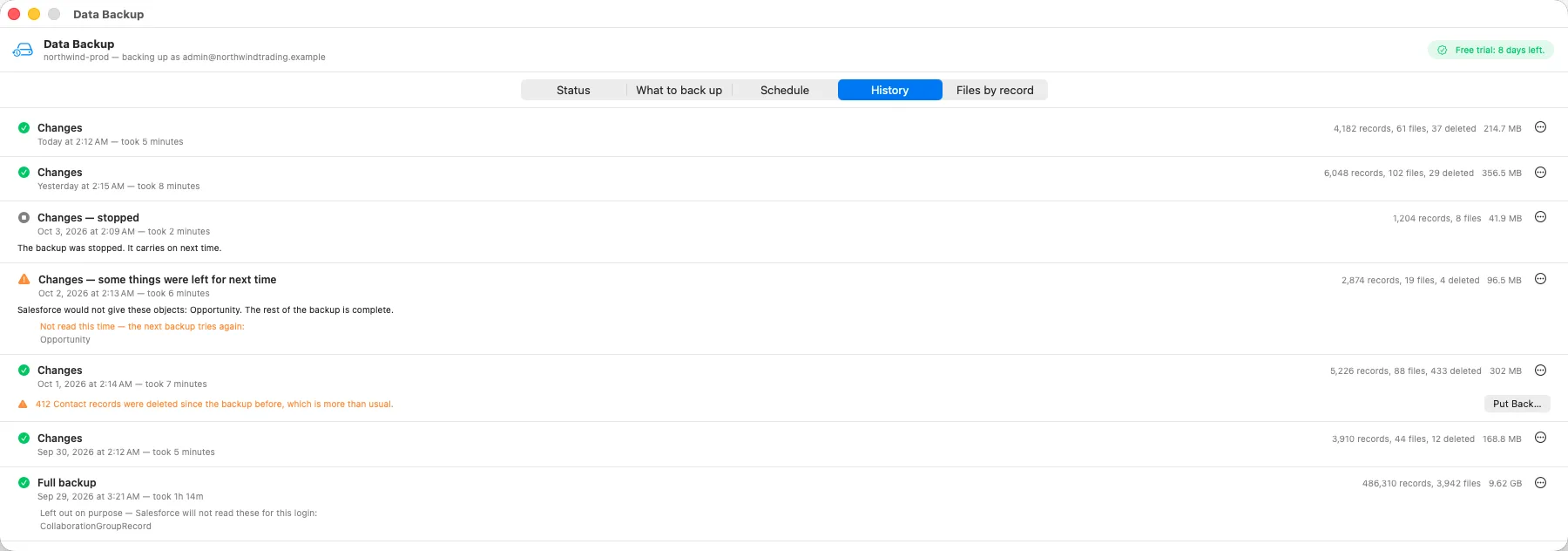
Data Backup copies the records and files your Salesforce login can see, in the objects it covers, to a folder on your Mac. It runs on a schedule, even with the app closed. The records are plain CSV files that Excel opens. The first backup is complete. After that it takes only what changed, so it can run every hour, with a new complete backup every four weeks unless you change that. Nobody has to download a zip before Salesforce deletes it, and nothing is sent to us: we never see a record of yours.
When a backup finds more records deleted than usual, it tells you. Pick the backup from before a mistake to put records back: from the Recycle Bin with the same Ids while Salesforce still has them, or re-created from the backup with new Ids. Chosen fields can go back too, which undoes a wrong mass update. Files are not re-attached yet. $10 a month after a 14-day free trial in the app, with no card. If a subscription ends, every backup stays readable and putting records back keeps working. Only new backups stop.
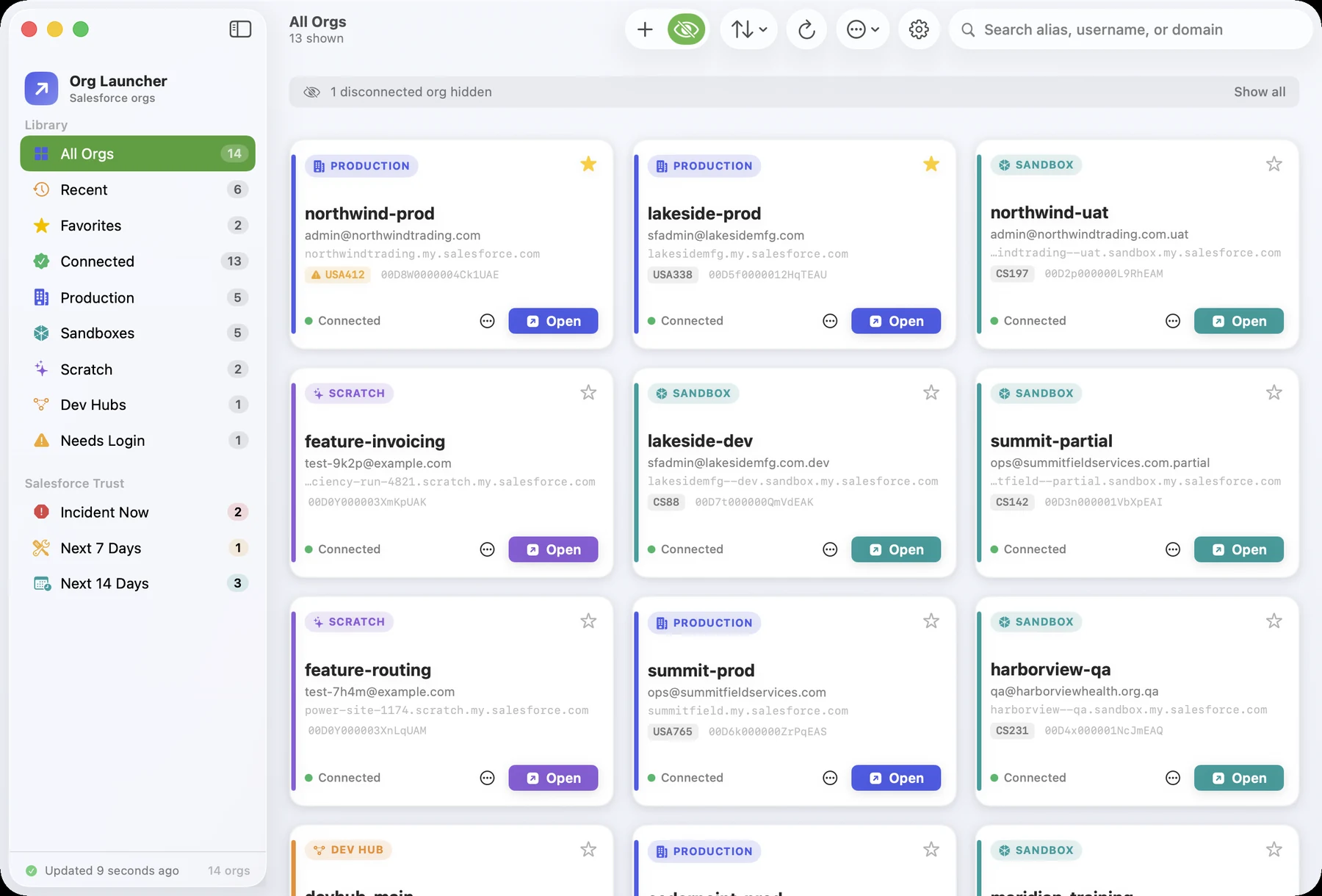
Every org you work in, in one list
Open any org in your browser in one click. The list is the orgs you have already signed in to, and it is saved on your Mac, so nothing waits on a network call.
What it does
Find and merge duplicates
Any object, your rules
Pick the records to check and the fields that decide a duplicate. Exact ignores capitals, spacing and endings like Inc or LLC. Close catches typos like Jon and John, short forms like Ed for Edward, and a phone number written five different ways.
Duplicates inside one account
Match on a lookup as well as a name, so you find the two Meredith Mannings sitting under the same account and not the ones at different companies. A filter can narrow the check before anything downloads.
Two million records, on your Mac
Records are copied down and compared here, so nothing you try can change Salesforce. On an M4 Mac mini, two million generated test records compare in about fifteen seconds once they are downloaded, and the screen shows what it is using and what is free before it starts.
See who has the history
Count the tasks, cases and opportunities behind every record in every group, and open any list to read them. The record carrying the history is usually the one to keep — and it is easy to keep the wrong one without looking.
A real merge, not a delete
For Accounts, Contacts and Leads, Salesforce's own merge moves everything attached to the duplicates onto the record you keep, one at a time to stay clear of limits. Choose which values the survivor ends up with first, field by field. Duplicates of other objects can be tagged or deleted.
Hand the list to your client
Every group exports to Excel with the fields you chose, and with the related record counts too once you have counted them. They mark Keep, Delete or Not a duplicate, you load the file back, and the deletions they marked are what gets carried out — nothing else, and nothing you have not seen.
A review can take days
Mark records that are not duplicates and they stop being suggested, remembered between sessions. Search the results, work through one group at a time, and every record is re-checked against Salesforce before anything changes.
Match on a field from a linked record
Check contacts for duplicates using the account name they sit under, without first building a formula field to copy it onto the contact. Any lookup on the record can be opened to reveal its fields. It also tells you how many records have no linked record at all, because those are never counted as duplicates.
Compare two kinds of record against each other
Salesforce's own duplicate rules pair up the objects it knows about. Org Launcher compares any two or more kinds you choose — the same person sitting in your leads and in your contacts, the same company in two custom objects. You write a rule such as “last name” and say which field answers it on each kind, so it does not matter that the fields have different names. Each kind's fields are listed on screen with a box to search them by name, so finding one on a wide object does not mean scrolling. Merging is not possible between different kinds, so it is not offered; you can still look, export, tag, delete, and fill in the record you keep. Leads you have already converted are left out unless you ask for them — a converted lead is the contact it became, so counting those as duplicates would bury the real ones under every conversion your org has ever done.
Catches +tag email addresses
People add a tag to an address so one mailbox looks like many — ejbantz+test@gmail.com is delivered to ejbantz@gmail.com and is the same person. Org Launcher groups them, in exact matching as well as close. The address is never rewritten on the record, and a pair matched this way is never reported as identical — so a shared inbox like info+sales@ and info+support@ is always flagged as a group holding records that do not really look alike.
Ignores values that do not name anybody
A blank field never counts as a match, and neither should a field that says “unknown” or “not provided”. On one real org those two values covered 14 percent of leads — forty times more than the most common real surname — and the records carrying each value all agreed with each other exactly. Org Launcher treats them as missing, shows you every value it found with a count, and puts any of them back with one click.
Breaks up groups that are not all alike
Sometimes each record is close to the next one but the two ends are nothing alike, and hundreds of different records end up in one group. Org Launcher spots that, checks the group again, and splits it into smaller groups whose records really do match each other. A group where every record already agrees is never broken up, however large. No record is dropped.
Hold back what is too big to be sure about
Set a number. A group holding more different-looking records than that still shows up, marked, but tagging, filling, merging and deleting skip it unless you tick Include the held-back groups anyway for that run. Records that are exactly the same count as one, so a pile of identical rows is never held back.
Reuse the setup from any earlier run
The fields that decide a duplicate are remembered for each object, so running again next month does not mean ticking twenty boxes again. Pick any earlier setup by what it matched on and when you last used it, change anything you like, and run.
Get into an org
Launch in one click
Every Salesforce org you have authorized with the CLI, in one list you can search and filter by type or connection status. Click Open and you are logged in, no password and no Terminal.
Open from Spotlight
Your orgs appear in Spotlight. Press Command-Space, type the alias, and the org opens logged in without switching to the app first.
Ready the moment you open it
Your org list is saved on your Mac, so nothing waits on a network call. Connections are re-checked in the background.
Adding and reconnecting do not make you wait
Log in once in your browser and the org appears on its own. If you would rather not wait, press I've finished signing in and it looks straight away. A login that has expired is the same: the app asks about that one org rather than re-checking every org you have, so it comes back just as quickly whether you keep three orgs or thirty.
Query and export your data
Build a query by clicking
Pick an object and the query is written for you. Tick fields to add or remove them, add filters from plain choices like “is after” and “contains”, choose the sort, and set how many rows with one button. You never have to type SOQL.
It knows which fields your org uses
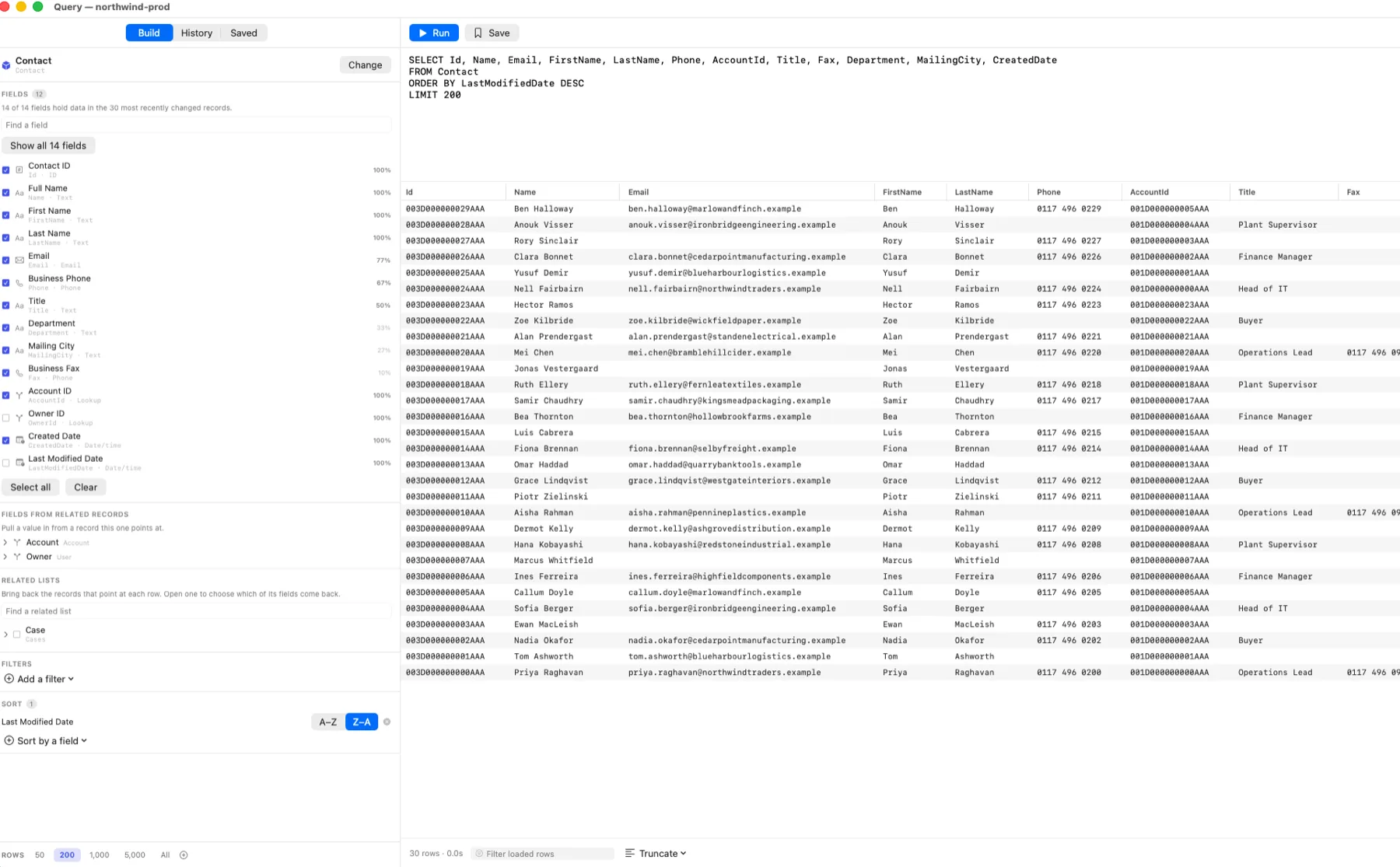
Choosing an object looks at your recent records and shows how often each field is actually filled in. An object with 217 fields opens with the 14 your org uses rather than all of them, and every field shows a percentage so you can see what is really there.
The objects you use, first
The picker leads with the objects you query most, then with the ones holding the most records — so Account and Contact are at the top instead of buried alphabetically among seventeen hundred names.
Related records and related lists
Pull a value in from a record yours points at, like an account name on a contact. Bring back the records that point at yours, choosing which of their fields come with them.
The SOQL is always there
Read it, copy it, send it to a colleague, or edit it by hand. Edit it into something the builder has no controls for and it tells you, and leaves your query exactly as you wrote it rather than rewriting it.
Write SOQL with help
Type-ahead suggests objects, fields and related records as you go, and shows each field label and type next to the API name — so you can find Billing State/Province without knowing it is called BillingState. Typing a picklist value offers the values that field accepts, already in quotes — the value Salesforce stores is often not the label you see on the page, and an unquoted one is a query that will not run.
Results you can actually read
Drag any column heading to resize it, or switch the whole table between cutting long values off, wrapping them, and widening every column to fit what is in it.
Straight into a spreadsheet
Copy pastes into Excel or Google Sheets as columns, and you can export to CSV or a real Excel file. Date and number columns arrive as real dates and numbers, so you can filter a date column by month, sort it in date order, and add a column of numbers up. Record ids, phone numbers and anything with a leading zero stay exactly as they are.
Extracts of any size
No row limit. Rows appear as they arrive, a Stop button ends a long pull and keeps everything already loaded, and a filter box searches what you have without going back to Salesforce.
Keep the queries that work
Every query you run is kept in History, and the ones worth keeping can be saved by name and re-run against any org.
Change data from a spreadsheet
Insert, update, upsert, delete
Paste rows straight out of Excel or Google Sheets, or drop a CSV or Excel file. Columns are matched to fields by API name or label, and when two fields could both be meant, it asks instead of guessing.
Your spreadsheet, not Salesforce's format
8/3/26, $1,250.00, Yes, 50% and (350) all become what the API expects. Excel dates stay dates instead of arriving as five digit numbers. Long external keys keep every digit.
Fill lookups with your own keys
A lookup or master-detail field can take an External ID value from whatever system the data came out of, instead of a Salesforce record ID. When the target has one External ID field it is picked up for you.
Related records in one file
An Excel file can hold a tab per object. Parents are created before children, rows link by a nickname, and a template for several objects arrives already wired together.
Fix mistakes before they land
Rows that would be rejected show in red with the reason, before anything is sent. Click any value to correct it in place — no going back to Excel and pasting again.
A way back from every error
Updates back up current values to a CSV first, deletes save a receipt, and an insert can be undone in one click. Failed rows export with the reason, and you can return to fix them with everything still set up.
Back up your data ($10 a month)
Your records and your files
A backup takes every record and every file this login can see in the objects the list covers, and a list of which record each file belongs to. The first one is complete. After that it takes only what is new, what changed and what was deleted, so an hourly backup is a small one. Every four weeks it takes a complete one again, unless you change that.
Ordinary files you can open without this app
Each backup is a folder of CSV files, one per object. The files themselves are kept once, in a Files folder beside the backups, named with their Salesforce Id and their real name. Excel opens the CSV files, Data Loader reads them, and so does Org Launcher's own Data Import. Nothing is in a format only we can read, and nothing needs a subscription to open again later.
We never see your backups
The records go from your org straight to a folder on your disk, or to another folder you choose, such as an external drive. Nothing is sent to us, there is no cloud account, and we never see a record of yours. If you choose a synced folder, that service copies the backup like anything else in it. It warns you when the folder you pick is one macOS protects, is in iCloud Drive, or is on a disk or network share that can be disconnected, because a backup running with nobody at the Mac cannot answer a permission prompt and cannot plug a disk back in. Each backup keeps the folder it was set up with, so changing the default never moves one you already have.
An external drive, safely
Each org's backup can have a folder of its own, so one org can go to a drive you plug in and another can stay on the Mac. When that drive is not connected the backup waits for it and says so — it never quietly fills your startup disk instead — and it carries on by itself once you plug the drive back in. There is an Eject button beside the folder, and it is offered again when a backup finishes, so the drive can be unplugged safely. Changing an existing backup's folder moves nothing. The backups already taken stay complete where they are, the next backup in the new folder is a complete one, and the app tells you this before it changes anything.
On a schedule, with the app closed
Every hour, every day at a time you pick, or weekly. It runs whether or not Org Launcher is open, and tells you if a backup fails. Change backups go ahead on battery; a full backup waits for mains power, and for a normal network rather than a phone hotspot, unless you say otherwise. Every org with a schedule is listed under Being Backed Up in the sidebar, with when it next runs, how the last backup went and how much is stored.
It says what it needs before it starts
Press Back Up Now and it works out how much disk the backup needs and how much you have free before it starts anything, and refuses one that will not fit rather than starting it and stopping half way. The size is an estimate. When it is close, the window says the backup may run out of room, and the backup still starts; one that does run out stops before the disk is full. You choose how many complete backups to keep — the last three, the last six, or everything — and it shows what the ones on your disk are using. Tidying up happens when a backup finishes, and that backup says which older ones it removed and how much room that freed. The backup just taken is never one of them, and neither is anything a later set of changes is rebuilt from.
A complete copy as of any backup
Pick any backup in the list and save a full set of CSVs as things stood that day, rebuilt from the last complete backup before it and the changes between the two. You do not have to work out which folders to stitch together.
It tells you when records go
When a backup finds more records deleted than usual, it warns you: 100 or more that are also at least 5% of that kind of record in the backup, or 1,000 or more at any size. A scheduled backup sends a notification, and the backup window says it too. A planned clean-up needs nothing. Records deleted by accident can be put back: from the Recycle Bin with the same Ids while Salesforce still has them, or re-created from the backup with new ones.
Put records back
Pick the backup from before a mistake and see, one record at a time and with a search, what has been deleted since and what has changed. Deleted records come back from Salesforce's Recycle Bin with the same Ids while it still has them. Salesforce also puts back links to them from other records: every custom lookup and the main standard ones, such as Parent Account and Reports To, unless someone has changed that link since. Records that have left the bin are re-created from the backup instead, as new records with new Ids, parents first and linked to each other again. Changed records get the fields you choose back, which undoes a wrong mass update, and what they held a moment before is saved to a file first. It keeps working if a subscription ends.
It knows whose backup it is
A backup belongs to one login, because two users of the same org see different records and different fields. The window says which login it is backing up as, and it asks Salesforce whether that login can see all records and all files. If it cannot, the window says so before the first backup, rather than leaving you to find out at the worst possible moment.
It stays out of your org's way
Files come down one at a time, and fetching a file's contents is one API request, so the backup watches your org's daily allowance and pauses when what is left drops below a fifth of it. Your own integrations keep running; the backup picks up where it stopped.
14 days free, then $10 a month
The trial starts the first time you back up an org. No card and no account. After that it is $10 a month for two computers, cancelled from your DewWow account whenever you like. If a subscription ends, every backup already on your disk stays there and stays readable, and saving a complete copy keeps working — only new backups stop. Everything else in Org Launcher is free and stays free.
Try Data Backup free for 14 days in the app, with no card. Then subscribe for $10 a month. Everything else in Org Launcher is free.
Know what is happening
Storage and API limits
See data storage, file storage and daily API usage for any org. Cards warn you at 80 percent, an At Risk group collects every org that is close, and orgs past their allowance say how far over they are.
Know your release date
Every card shows the next Salesforce release and the day it reaches that org. Salesforce upgrades instances in waves, so two orgs on the same release can be a month apart.
Outages at a glance
Instance badges turn amber or red when Salesforce reports an incident, with maintenance and release windows a click away.
Who changed what in Setup
Read an org's Setup Audit Trail without logging in. Filter by person, period or text, and export it to CSV. Automated entries are hidden so real changes stand out.
Release updates before they bite
Salesforce switches some changes on for you, on a deadline, whether or not anyone acts. See which ones are still outstanding in any org, how many days past due each one is, and what it actually does. An Updates Past Due group collects every org with one already overdue.
Work one update across every org
See a single release update with the list of orgs where it is still outstanding, so you can do the work once and tick each client off. Salesforce Setup cannot answer this — it only ever shows one org at a time. Export the whole thing as one row per org.
Check your sending domains are proven
Salesforce needs each org to prove it owns the domain it sends from — with either an active DKIM key or a verified authorized email domain, whichever you prefer. See which orgs have one, which have neither, and what happens if nobody acts, across every org rather than one Setup page at a time.
Confirm the DNS behind it
Salesforce can tell you it considers a domain verified. It cannot tell you the DNS record behind it is still published. Optionally look up the DKIM, SPF and DMARC records yourself for every sending domain, see the actual values as they stand today next to what needs changing, and export the lot to Excel to hand to the client. A lookup that fails is reported as “could not check”, never as a fault.
Sort the urgent from the noise
Most of the list is informational or already done. Only what genuinely needs action is counted, so a real deadline is not buried under sixty items nobody has to touch. Filter by category, search the text, and export the list to Excel or CSV for a client.
Track metadata changes
See what changed
Scan an org for recently changed metadata. Filter by the person who changed it, a date range, or a name search.
Compare two orgs
Pull the same components from two orgs and see, file by file, exactly what is different.
Extract to Downloads
Save any selection of components as source files, ready to review or move to another org.
Jump to the component
Go straight from a change in the list to that component inside Salesforce.
Keep your org list clean
Catch expiring scratch orgs
Scratch orgs and trials show how long they have left, turning amber inside a week and red once they are gone, so a dead org never looks like a working one.
Clear out stale logins
Remove the logins that no longer work, in bulk. You review the full list first, keep any you want, and confirm by typing the count. Nothing in Salesforce is deleted.
Build a query by clicking
Pick an object and the query is written for you. The percentages down the side are how often this org actually fills each field in, worked out from its own recent records — so you start with the fields your data really uses instead of all 217 of them. Add filters, sorting and related records the same way. The SOQL is always there to read, copy or edit.
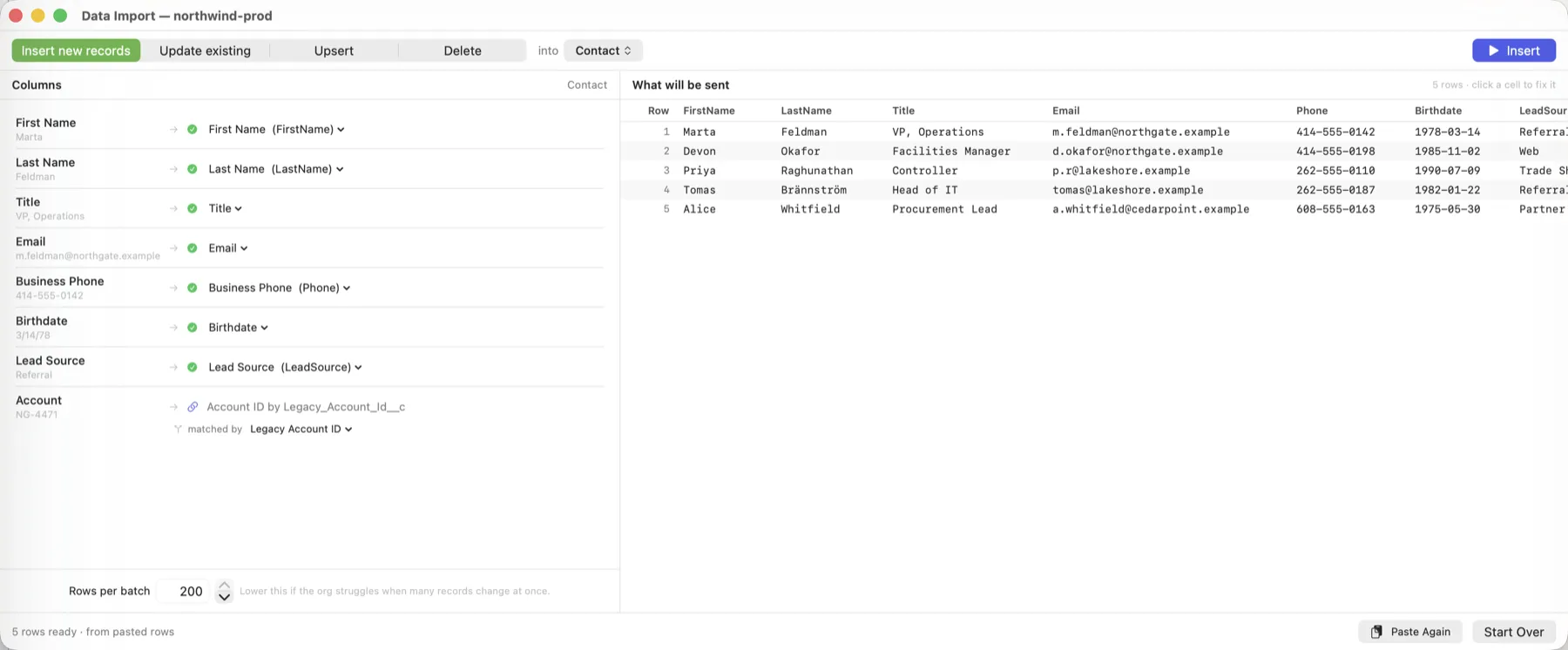
Load a spreadsheet into Salesforce
Paste your rows and the columns are matched to fields, the values are converted to what Salesforce expects, and you see exactly what will be sent before anything is. Here a birthdate typed as 3/14/78 is on its way as 1978-03-14, and the Account column holds a key from the old system rather than a Salesforce ID.
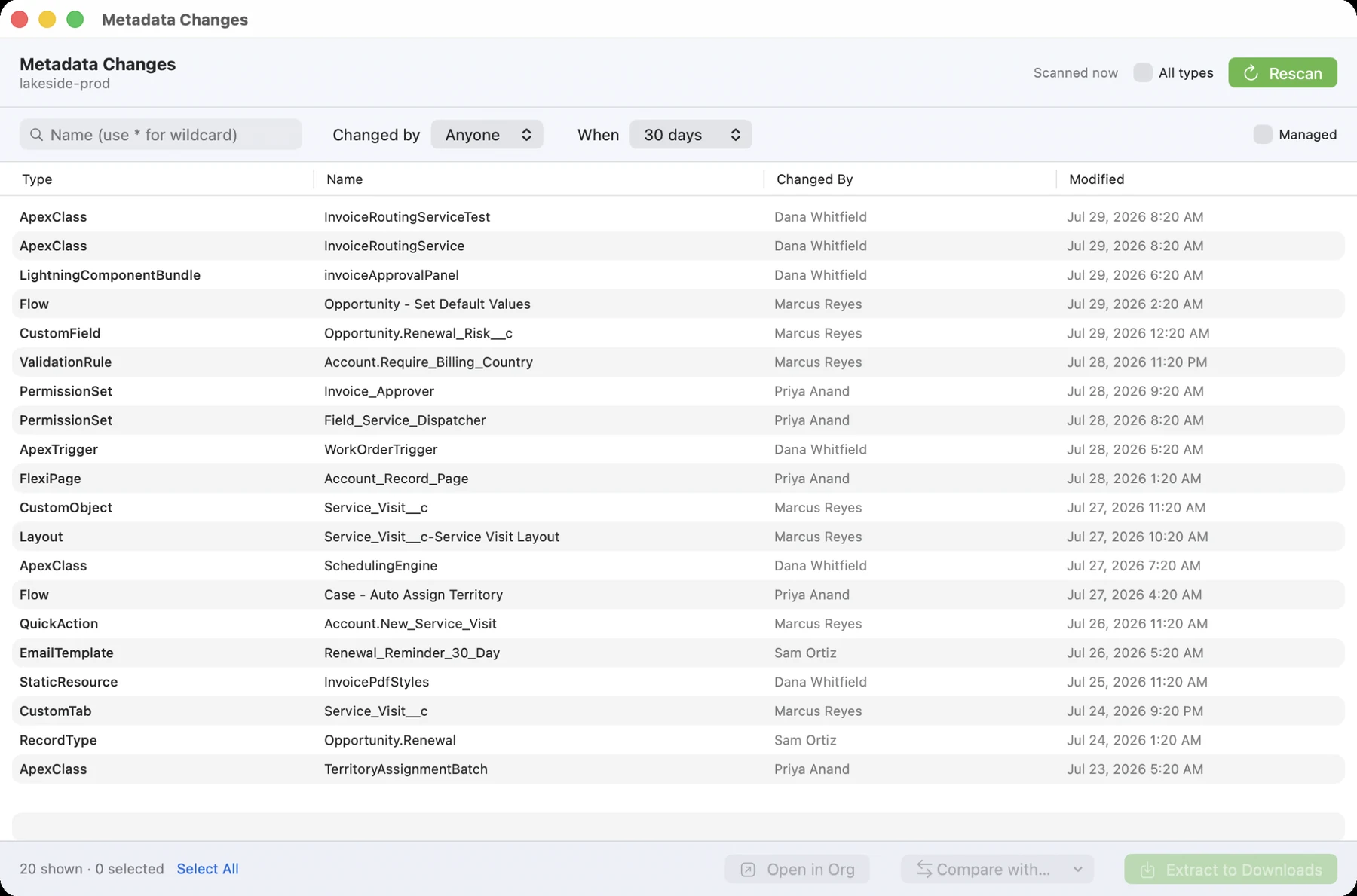
Find what changed, and who changed it
Scan an org for recent metadata changes, then narrow the list by person, date range, or a wildcard name search. Extract what you find, or compare it against another org.
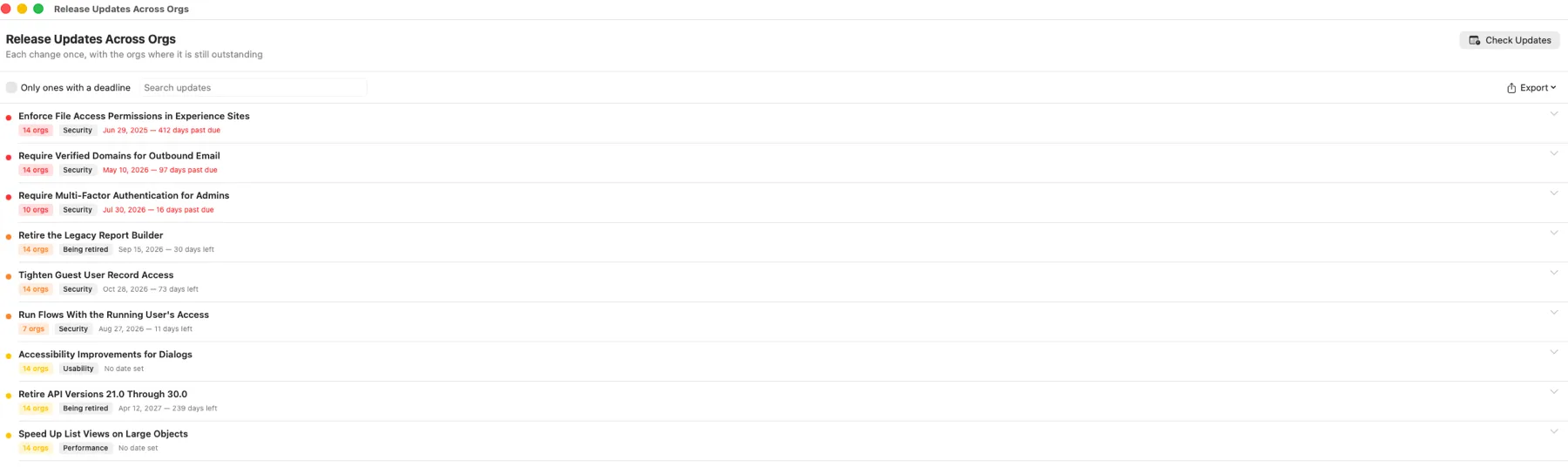
Every Release Update, and every org still waiting
Salesforce shows Release Updates one org at a time, so the same change has to be chased separately in each. This is the other way round: each change once, with the orgs where it is still outstanding and how long it has been overdue. Sort out the ones in red first.
Org Launcher for Windows
Org Launcher for Windows is free, like the Mac version, and works the same way: it reads the Salesforce orgs you have already signed in to with the Salesforce CLI on that PC, so they are in the list the first time you open it.
Download for Windows 1.0.0 · 45.6 MB · Windows 10 version 1809 or later, 64-bit
What is in it
- Opening any authorized org in your browser, already logged in, with search, filters and favorites
- The query builder, SOQL type-ahead, saved queries and history, and export to Excel or CSV
- Loading a spreadsheet into Salesforce — insert, update, upsert and delete, with the current values saved to a file before an update, and failed rows retried on their own
- Finding duplicate records, for one kind of record or for Leads and Contacts together: review, export to Excel, tag, delete, fill the kept record from the others, and merge Accounts, Contacts and Leads
- Tracking metadata changes, saving components as source files, and comparing components between two orgs
- Storage and API limits, Salesforce Trust status and incidents, and the next release date
- The Setup Audit Trail, with filters and CSV export
- Release Updates, both for one org and across every org at once
- Email domains and their DKIM keys
What is not in it yet
Data Backup is not in the Windows version yet, and nor are Put Back, Re-create and Restore, which go with it. A few smaller things are Mac only as well — opening an org from Spotlight, for instance, has no Windows equivalent.
What you need
- Windows 10 version 1809 or later, 64-bit
- The free Salesforce CLI, the same one the Mac version uses
The Windows build is not signed yet. The first time you open the installer, Windows shows “Windows protected your PC”. Click More info, then Run anyway. The Mac version is signed and checked by Apple, so it needs no extra steps. Installing does not need an administrator, and nothing else has to be installed first.
Installing on a Mac
Org Launcher is signed by DewWow and checked by Apple, so there is nothing to approve in System Settings. It installs like any other Mac app.
- Open the download and drag Org Launcher to your Applications folder.
- Open Applications and double-click Org Launcher. The first time, macOS asks whether to open an app downloaded from the internet. Click Open.
Earlier beta builds asked you to approve them in System Settings. If you approved one, nothing needs undoing — this version simply will not ask.
What you need
- A Mac running macOS 14 (Sonoma) or later. Apple Silicon and Intel are both supported. There is a Windows version too.
- The free Salesforce CLI. Org Launcher tells you if it is missing and links you to the installer.
- A Salesforce login with API access: Enterprise, Unlimited, Performance or Developer Edition, or Professional Edition with API access added, and a profile or permission set that allows the API. Since September 2025, signing in through the Salesforce CLI also needs the Approve Uninstalled Connected Apps permission. The standard System Administrator profile has it. For anyone else, an admin can install the Salesforce CLI app once, in Setup under Connected Apps OAuth Usage. If your org uses API Access Control, the permission is Use Any API Client instead.
Getting started
- Drag Org Launcher to your Applications folder and open it.
- Your orgs appear automatically. If the list is empty, click the + button to connect one.
- Click Open on any org to launch it in your browser.
- Right-click an org for more: open Setup, copy a login link, review recent changes, or compare it with another org.
Your credentials stay on your Mac
Org Launcher never stores your Salesforce passwords or access tokens. It uses the connections you have already authorized with the Salesforce CLI, and everything it reads is kept on your computer, or in the folder you choose, and is never sent to us. Apart from the update check, the only thing it sends us is +1 to the launch counter above — no identifier, no account, no IP address logged — and you can switch both off in Settings. A subscription adds the subscription check, whose body carries the key, a one-way code for the computer and the version number, and nothing from Salesforce. Read the privacy policy.
Common questions
Is there a Windows version of Org Launcher?
Yes. Org Launcher for Windows is free, like the Mac version, and you can download it from this page. It reads the Salesforce orgs you have already signed in to with the Salesforce CLI on that PC, so they are in the list the first time you open it. It opens your orgs, builds and runs queries and exports them, loads a spreadsheet into Salesforce, finds and merges duplicate records, tracks metadata changes and compares components between two orgs, and covers storage and API limits, Trust status, the Setup Audit Trail, Release Updates and email domains. Data Backup is not in it yet. A few smaller things are Mac only, such as opening an org from Spotlight.
What do I need to run Org Launcher on Windows?
Windows 10 version 1809 or later, 64-bit, and the free Salesforce CLI — the same one the Mac version uses. Nothing else has to be installed first, and you do not need an administrator to install it. It is not signed yet. The first time you open the installer, Windows shows “Windows protected your PC”. Click More info, then Run anyway. The Mac version is signed and checked by Apple, so it needs no extra steps.
Can it check whether our email domains are set up correctly?
Yes, in two halves. It reads the authorized email domains and DKIM keys from each org and shows which ones Salesforce has actually verified. It can then look up the DNS records behind them — DKIM, SPF and DMARC — and tell you whether they really are published, which is the part Salesforce cannot see. A domain can show as verified in Salesforce long after somebody removed the DNS record. Those DNS lookups are switched off until you turn them on, because they are the only requests the app makes that go to neither Salesforce nor DewWow. A lookup that does not answer is reported as “could not check” rather than as a problem.
What are Salesforce Release Updates, and why does this matter?
Salesforce sometimes changes how something works and gives you a deadline to get ready. After that date it switches the change on for you whether or not anyone has acted. They are listed in Setup, one org at a time, which is why they are easy to miss. Org Launcher reads that list for any org and shows what is still outstanding, how far past due it is, and what the change actually does. It never activates one — that stays in Salesforce Setup, because activating a release update can change how an org behaves.
How do I see how much storage a Salesforce org is using?
Right-click the org in Org Launcher and choose Storage & Limits. It reads data storage, file storage, daily API calls and every other limit Salesforce reports, and shows how much of each is used. You can also check every connected org at once, and the At Risk group lists any org at 80 percent or more.
When will my Salesforce org get the next release?
Every org card shows the next seasonal release and the date it reaches that org. Salesforce upgrades instances in waves over several weeks, so two orgs on the same release can be a month apart. The sidebar groups your orgs by wave so you can see which ones go first.
How can I see who changed something in Salesforce Setup?
Open the Setup Audit Trail for that org from the right-click menu. It shows who changed what and when, filtered by person, period or text, and exports to CSV. Entries Salesforce logs as Automated Process are hidden by default so real changes are easy to see.
Can I query Salesforce records and export them to Excel?
Yes. Open Query Records on any connected org, build the query by clicking or write SOQL with type-ahead help, and export the results to Excel or CSV. Copy also pastes straight into a spreadsheet as columns. In the Excel file, long numbers such as 18-digit external IDs keep every digit, and values with a leading zero keep it. A CSV opened in Excel turns long numbers into scientific notation and loses the last digits.
Can I filter and sort an exported date column in Excel?
Yes. Date, date/time and number columns are written as real dates and numbers, so Excel offers its date filters — this month, last year, between two dates — and sorts them in date order rather than alphabetically. A number column can be added up and sorted properly, so 2 comes before 10 instead of after 1. Record ids, phone numbers and anything with a leading zero are left exactly as they are, because turning those into numbers would damage them.
Does it know my picklist values when I write a query?
Yes. When you are typing the value in a filter, it offers the values that field accepts, already in quotes. This matters because the value Salesforce stores is often not the label you see on the page — a stage shown as “Closed Won” may be stored under a different name — and a picklist value without quotes is a query that will not run.
Can I query Salesforce without knowing SOQL?
Yes. Pick an object and the query is written for you. Tick fields to add or remove them, add filters from plain choices like “is after” or “contains”, choose how to sort, and set how many rows with one button. The query text is always on screen to read, copy or send to a colleague, and you can edit it by hand at any point. If you edit it into something the builder has no controls for, it tells you and leaves your query exactly as you wrote it.
How do I know which Salesforce fields are worth querying?
Choosing an object looks at its most recently changed records and reports how often each field is actually filled in. A field used on 90 percent of records and one used on 2 percent look very different, and the query opens with the ones your org really uses instead of every field on the object. You can still show all of them with one click.
Can I query a related record or a related list?
Yes to both. You can pull a value in from a record yours points at, such as the account name on a contact, without creating a formula field first. You can also bring back the records that point at yours — an account's contacts, for example — and choose which of their fields come with them.
Can it download a large Salesforce table?
Yes, there is no row limit. Rows appear as they arrive rather than after the whole extract finishes, a Stop button ends a long pull and keeps everything already loaded, and a filter box searches the rows you have without querying Salesforce again.
Do I need the Salesforce CLI?
Yes. Org Launcher works with the orgs you have already authorized in the Salesforce CLI (sf). It does not store passwords or tokens of its own — logging in happens in the CLI and your browser, exactly as it does today.
Can I sign in to the same org as two different users?
Yes. Each login gets its own card, even when two of them are the same org — an administrator and a test user, for example. Everything you do from a card is done as that user, so a query shows what that user can see and an import writes as that user. Removing one login never removes the other. If you reconnect one and your browser signs you in as the other user, Org Launcher tells you, instead of waiting for a login that is not coming.
Is finding and merging duplicates included?
Yes. It is part of Org Launcher, and it is free. It finds duplicates on any object and merges Accounts, Contacts and Leads. Duplicates of other objects can be tagged or deleted instead. Finding them changes nothing in Salesforce until you say so.
Is Org Launcher free?
Yes. Org Launcher is free to download and use. Data Backup, the one paid part, is $10 a month after a 14-day free trial in the app. The Mac version runs on macOS 14 or later and works on both Apple Silicon and Intel Macs. The Windows version is free too, and runs on Windows 10 version 1809 or later, 64-bit.
Can I open a Salesforce org without opening the app first?
Yes. Org Launcher adds your orgs to Spotlight, so pressing Command-Space and typing the alias opens the org logged in. You can switch that off in Settings.
Can I insert or update Salesforce records from a spreadsheet?
Yes. Right-click a connected org and choose Import Data. Paste rows from Excel or Google Sheets, or drop a CSV or Excel file, then insert, update, upsert or delete. Columns are matched to fields by API name or label, values like 8/3/26 and $1,250.00 are converted to what Salesforce expects, and there is no row limit.
Can I set a lookup field using an External ID instead of a Salesforce record ID?
Yes. Any lookup or master-detail column can hold a value of an External ID field on the object it points at, which is what data coming out of another system usually has. When the target object has a single External ID field it is used automatically, and you can change which one under the column's matched by control.
Can I import related records, like accounts and their contacts, in one go?
Yes. Put one tab per object in an Excel file. Parents are created before children, and a row in a child tab points at its parent by a nickname in a Reference column, or by the parent's External ID. You can generate a template covering several objects that arrives already linked.
What happens if an import goes wrong?
Updates save the current values of every field being changed to a CSV in Downloads before anything is written, deletes save a receipt, and an insert can be undone in one click. Rows that fail export with the reason, and you can go back and fix them with the object and column mapping still set up. Rows that already went in are held back so nothing is created twice.
What does the $10 a month cover, and what happens if I stop paying?
$10 a month covers Data Backup on two computers, for as many orgs and as many logins as you like. The 14-day free trial is in the app: it starts the first time you back up an org, with no card and no account. Subscribing in the shop charges the first month straight away, so start with the trial. You buy and cancel the subscription from your DewWow account. If a subscription ends, nothing is deleted and nothing is locked: every backup already on your disk stays there and stays readable by anything that opens a CSV, and saving a complete copy and restoring both keep working. Only new backups stop, and the backup window and Settings both say why. Everything else in Org Launcher — opening orgs, queries, exports, imports, finding and merging duplicates, metadata, limits — is free.
Questions?
Email ejbantz@dewwow.com and include the version number from Org Launcher > About Org Launcher.
Overview · Find duplicates · Data Backup · Release notes · Privacy · What it calls
DewWow LLC · Wisconsin’s Odoo Partner · dewwow.com
Salesforce and related marks are trademarks of Salesforce, Inc. Org Launcher is an independent product and is not affiliated with, endorsed by, or sponsored by Salesforce, Inc.