DewWow Org Launcher › Find duplicates
DewWow Org Launcher
Find and merge duplicate Salesforce records on your Mac, free
Org Launcher copies the fields you choose to your Mac and compares the records there, so nothing changes in Salesforce until you say so. Find duplicates on standard and custom objects, typos included, review every group, hand the list to a client in Excel, and merge Accounts, Contacts and Leads with Salesforce’s own merge. It is part of Org Launcher, and it is free.
1.1.16 · 12.3 MB · macOS 14 or later · Apple Silicon and Intel
Signed by DewWow and checked by Apple, so there are no steps in System Settings. How to install
Needs a Mac with macOS 14 or later, the free Salesforce CLI, and a Salesforce login with API access. Not in the first Windows version. What you need
How to find duplicates with DewWow Org Launcher
You do not need duplicate rules, matching rules or a managed package in your org. Org Launcher uses the orgs you have already signed in to with the Salesforce CLI. Four steps:
- Right-click a connected org and choose Find Duplicates.
- Pick the object, and the fields that decide a duplicate. Set each field to Exact match or Close match.
- Org Launcher copies those fields to your Mac and compares the records there.
- Review the groups. Then export them to Excel, or tag, fill in, merge or delete the duplicates.
Finding duplicates is a report, not a change
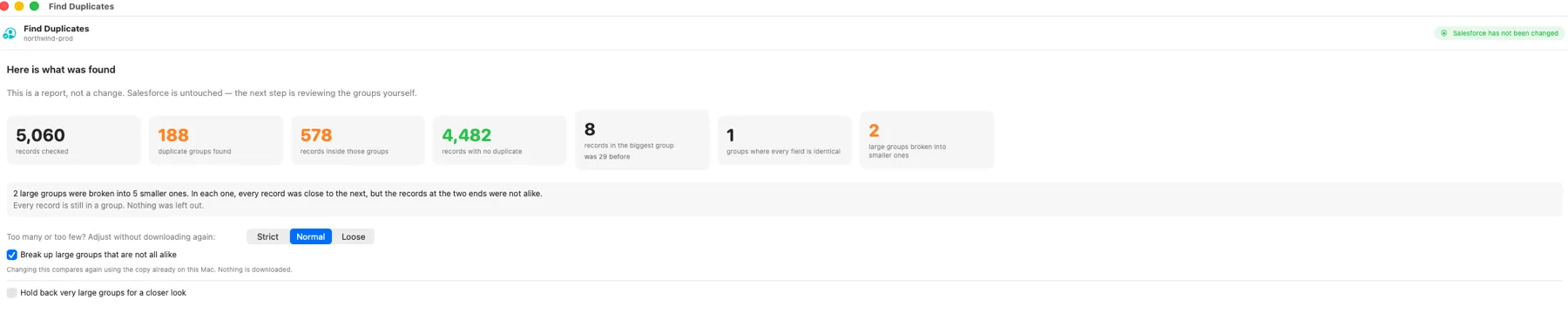
Looking for duplicates should not be able to break anything. Here it cannot: the records are compared on your Mac, and Salesforce is untouched until you choose to act. A badge in the window says Salesforce has not been changed until this window changes something. You get a count of the records checked, the groups found, how big the biggest group is, and how many records have no duplicate.
Only the fields you choose are copied, plus each record’s Id, name, and created and last-modified dates. Records come down in large pages through Salesforce’s Bulk API. To check only some records, type a filter and press Check the Filter: Salesforce itself confirms it, and says how many records match, before anything downloads. You also see how much space the copy is expected to need and how much is free, and the download stops rather than fill your disk. If it is interrupted, press Resume within a week and it carries on without losing or repeating anything.
If the matching finds too many or too few, change it and compare again. The records are already on your Mac, so nothing downloads a second time. When you do choose to change something in Salesforce, every record involved is checked against Salesforce again first. A record somebody edited after the copy was taken is left alone and listed. If that check itself fails, nothing runs.
The copy is real record data. It is kept in one file per check under ~/Library/Application Support/Org Launcher/Dedupe/, it can run to hundreds of megabytes, and it stays until you delete it. The records are never sent to DewWow or anyone else. The privacy page says where everything is kept, and the APIs page lists the calls a duplicate check makes, for your security team.
How it decides two records are the same
You choose the fields. Two records count as duplicates only when every field you chose agrees, each at its own setting. That is how you decide how sure a match has to be: last name, first name and email together is a much surer match than last name alone.
On text and names, Exact ignores capitals, accents and extra spaces, and reads punctuation as a space. On an account name it also ignores endings like Inc, LLC or Ltd and a leading “The”, so The Acme Company, Inc. and Acme count as the same. On a contact’s or lead’s name it ignores titles such as Mr or Dr. A phone number is compared by its digits only, without an extension or a US +1. An email address is compared as written, apart from capitals and a +tag, so john.smith@ and johnsmith@ are different addresses.
For Close, choose Strict, Normal or Loose: looser catches more and gives you more to review. Change it at any time, and the records are compared again from the copy on your Mac. On top of everything Exact ignores, Close also catches:
- Typos and a missing letter in names and text, such as Jon and John
- Swapped letters, such as Micheal and Michael
- Sound-alike spellings of a person’s name that are already nearly the same, such as Smith and Smyth, at Normal and Loose
- Short forms where one name starts the other, such as Ed for Edward, at Normal and Loose
- Initials, such as EJ for Edward, at Loose only
- The same account name with its words in a different order
- The same phone number with and without its area code
- An email address with a typo before the @, at the same domain
Email addresses with a +tag
People add a tag to an address so one mailbox looks like many: name+test@example.com is delivered to name@example.com. Org Launcher matches them as the same mailbox, in Exact and Close alike. The address on the record is never changed, and a pair matched this way is never labelled identical, so the app never treats it as certain.
What it will not do, on purpose
It has no nickname list, so Bob and Robert are not paired. When a contact’s or lead’s name ends in Jr or Sr, John Smith Sr and John Smith Jr are never treated as one person. A Jr or Sr kept in a separate field is not seen, so check those groups yourself. Email addresses at different domains never match closely, because merging two people at different companies is the worst mistake a tool like this can make.
It also does not compare every record with every other one. It sorts the records several ways (by the value, by the value read from the end, and by how a name sounds) and compares each record with its nearest neighbours. That keeps the comparison fast, and it means it can miss a pair.
Blank and placeholder values never match
An empty field is not evidence that two records are the same, so a record whose chosen field is empty is left out. A field that says “unknown” or “not provided” is the same statement typed out, so it is left out too. On one real org those two values covered 14 percent of leads. That is forty times more than the most common real surname. The records carrying each value all agreed with each other exactly.
The results say how many records were left out, and which field caused it. Every placeholder value found is listed with how many records carry it. Untick one and those records come straight back, compared again from the copy on your Mac. Where the app finds values like these in a field, you can add more of your own for that field. Words that are somebody’s surname, such as Null or Test, are not on the built-in list.
Any object, the fields you choose
Check standard and custom objects: any object this login can read and create records on. If Salesforce cannot hand an object over in bulk, the app says so in plain words. Text, text area, email, phone, URL, picklist and lookup fields can decide a duplicate, and text, text area, email and phone fields can be matched closely. Numbers, dates, currency and checkboxes cannot be match fields.
Duplicates inside one account. Add the Account lookup to first and last name. A lookup only matches when both records point at the same account, so you find the two people duplicated inside one company, not everyone in Salesforce who shares a name.
A field from a linked record. Check contacts using the name of the account they belong to, without building a formula field first. A record with no linked record is never counted as a duplicate, and the app says so before the download. On one real org, that left out two contacts in every three.
More to look at. Fields that do not decide a duplicate can still be fetched for the records that turn out to be duplicates, so you see them in the review and in the Excel file. The fields you used are remembered for each object, so running the same check next month does not mean ticking every box again.
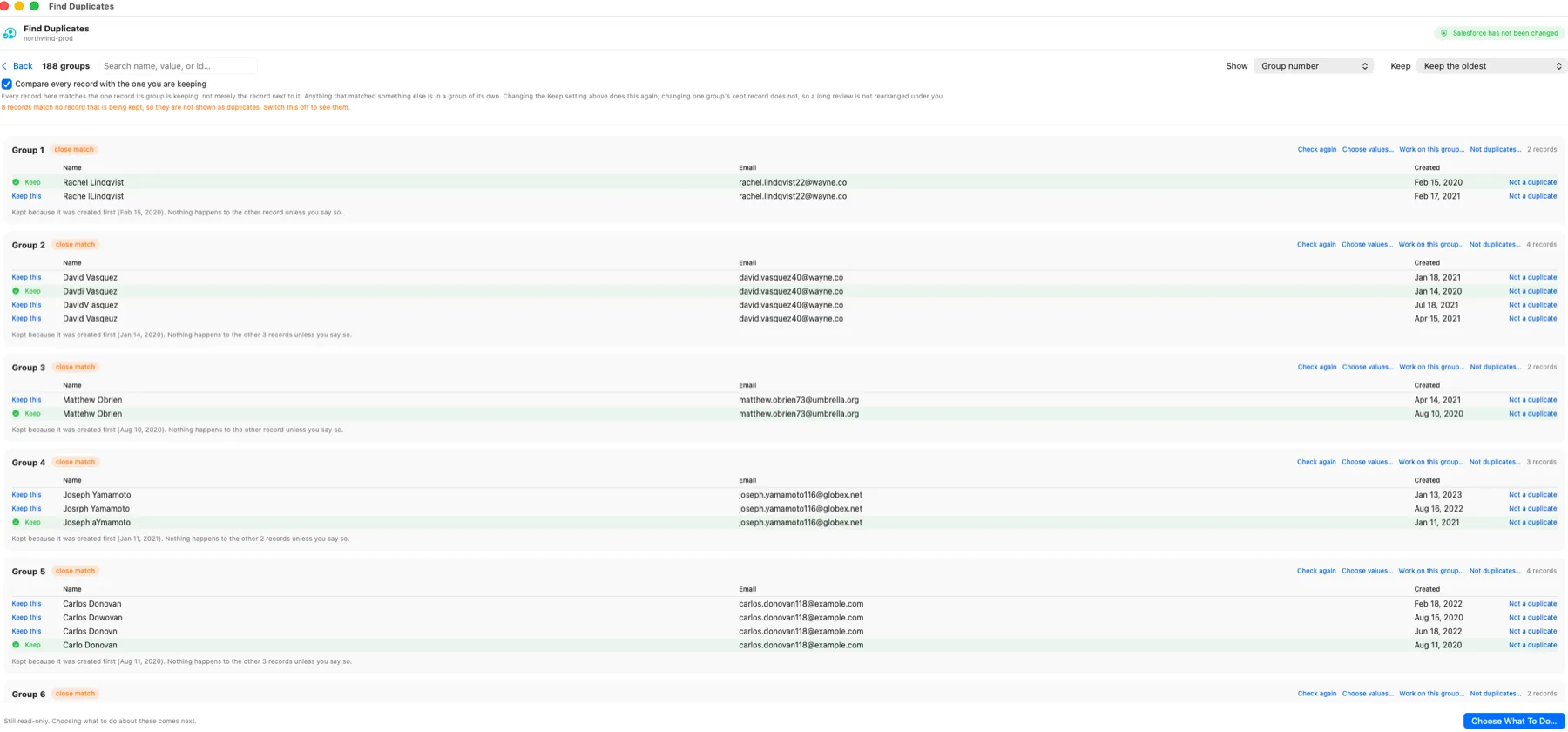
Every group, before you decide. Each group shows the record being kept and why it was kept, and nothing happens to the others unless you say so. Search the groups and work through them one at a time. Mark anything that is not really a duplicate and it drops out, and it stays out when you come back to the same check another day.
Leads against contacts, and any two kinds of record
The same person often sits in your leads and in your contacts. Choose two or more kinds of record, write a rule such as “last name”, and say which field answers it on each kind. The fields can have different names on each kind, and it works for custom objects too.
Leads you have already converted are left out by default. A converted lead is the contact it became, so leaving them in would report every conversion your org has ever done as a duplicate, and bury the real mistakes. Untick Ignore leads that have already been converted to include them.
What it cannot do is merge a lead into a contact. Salesforce merges only records of the same kind, and turning a lead into a contact is lead conversion, which Org Launcher does not do. A group that holds a lead and a contact can still be reviewed, exported to Excel, tagged and deleted, and the record you keep can be filled in from the others. Salesforce’s own standard duplicate rules also compare leads with contacts, when a record is saved.
A real Salesforce merge for Accounts, Contacts and Leads
For Accounts, Contacts and Leads, Org Launcher uses Salesforce’s own merge. Activities, opportunities, cases and the other records attached to each duplicate move to the record you keep, and the duplicate goes to the Recycle Bin.
Salesforce’s own merge screen takes up to three records at a time. Org Launcher works through whole groups instead. It merges each extra record into the one you keep, one at a time with a short pause between, to stay clear of record locks on a busy org. A large merge takes a while. That is on purpose.
Choose the record to keep. Keep the oldest, the newest, the most complete (counting the fields you downloaded) or the most recently updated, or pick one yourself, and the screen says why each was kept. Count the tasks, cases and opportunities behind every record first, archived activities included, because the record carrying the history is usually the one to keep. Then use Choose values to pick, field by field, which phone, title or address the kept record ends up with. Those values are written as part of the merge itself, so you never get one without the other.
Cases and every other object. Org Launcher does not merge them. You can tag the duplicates with the kept record’s Id so a report can find them, fill the kept record’s empty fields from the others, or delete the extras to the Recycle Bin. Salesforce itself can merge cases, three at a time, once an admin turns on Case Merge.
Before anything changes. Every record is checked against Salesforce again, and any record edited since the copy was taken is left alone. A run starts with the first 25 groups unless you choose otherwise. To merge or delete, you type the number of records first, so nothing large happens by accident. On a busy org you can send tags, fills and deletes in smaller batches. Delete never moves related records to the record you keep, and Salesforce can take some with it: deleting an account also deletes its contacts.
A merge cannot be undone. The merged-away record waits in the Recycle Bin for 15 days by default, or 30 if Salesforce Support has extended it for your org, and it can be restored from there. Restoring it does not move its related records back, and it does not change the record you kept.
| What you choose | What happens in Salesforce | Which objects |
|---|---|---|
| Export for review | Nothing. You get an Excel file of every group. | Any object |
| Tag the duplicates | The kept record’s Id is written into a text field you pick on each duplicate. Nothing is deleted. | Any object with an editable text field of 18 characters or more |
| Fill in the kept record | Empty fields on the kept record are filled from its duplicates, using only the fields downloaded for the check. Nothing is deleted. | Any object |
| Merge | Salesforce’s own merge. Related records move to the kept record, and the duplicates go to the Recycle Bin. | Accounts, Contacts and Leads |
| Delete | The duplicates go to the Recycle Bin. Related records are not moved to the kept record. | Any object |
Hand the list to your client in Excel
Export every group to Excel. The file carries the fields you chose, the suggested record to keep highlighted, and, once you have counted them, the tasks, cases and opportunities behind each record. A How To Use sheet explains the rest.
Your client marks each record Keep, Delete or Not a duplicate. Load the file back, and records marked Not a duplicate drop out of the groups straight away. The records marked Delete are what gets deleted, after you type how many, and nothing else. Rows are matched by Record Id, so your client can sort and filter the sheet freely. If the file holds a word it does not understand, or a group where every record is marked Delete, the whole file is refused and nothing in it is used. The screen names the row or the group, so the file can be fixed and loaded again.
Records marked Not a duplicate are remembered with that check on your Mac, so a review can take days. The Keep and Delete marks stay in the Excel file. Nothing is written to Salesforce until you run it, and a fresh download starts without any marks.
Built for big, messy orgs
In testing on an M4 Mac mini, two million generated records were compared in about fifteen seconds once they were on the Mac, using about 475 MB of memory. Downloading records from Salesforce comes first and takes longer, depending on the org, and an older Mac is slower.
One huge group becomes several smaller ones
Matching can run from one record to the next, so a record joins a group without looking like most of the records already in it. Each one is close to the one beside it, while the two ends have nothing in common. On one real org that produced a single group of 4,906 leads with unrelated first names. Org Launcher checks a large group again and, when it finds that pattern, breaks it into smaller groups whose records match each other more closely. No record is dropped. A group where every record already agrees is never broken up, however large it is. You can switch this off and compare again without downloading anything.
Every record is checked against the one being kept
By default, every record shown in a group is compared with the record you are keeping, not merely with whichever record sits next to it. A record that does not match the kept record leaves that group. Records that match each other but not the kept record become a new group, with their own kept record. A record that matches no kept record at all is set aside rather than shown as a duplicate, and the screen says how many. Untick Compare every record with the one you are keeping to see them. If you pick a different record to keep in one group, press Check again on that group to compare it with the new one.
Hold back what is too big to be sure about
Set a number. A group holding more different-looking records than that still shows up, marked, but tagging, filling, merging and deleting skip it unless you tick Include the held-back groups anyway for that run. Records that are exactly the same count as one, so a pile of identical rows is never held back. A marked Excel file is different: it deletes exactly what it marks, held back or not.
Salesforce’s own duplicate tools, and where DewWow Org Launcher fits
Salesforce has duplicate management built in, and you should keep using it. Duplicate rules warn or block when somebody creates or edits a record that looks like one already there. Org Launcher does not do that. It works alongside your rules, and does not replace them.
Salesforce’s rules look at a record when it is saved or viewed. Records saved together, such as the rows of one import, are compared with records already in Salesforce but not with each other. Salesforce’s scan of the whole org, Duplicate Jobs, is only in Performance and Unlimited Editions, and running one needs the Customize Application and View All Data permissions. Salesforce’s own merge screen takes up to three records at a time. For accounts and contacts in Lightning Experience it starts from View Duplicates, so it offers the records a duplicate rule has already flagged. Finding the duplicates already in the org, on any edition whose login has API access, is the job Org Launcher is for.
| Job | Salesforce’s own tools | Org Launcher |
|---|---|---|
| Warn or block when a duplicate is saved | Yes, with duplicate rules | No. Keep your duplicate rules for this. |
| Scan the whole org for duplicates | Duplicate Jobs, in Performance and Unlimited Editions only | Yes, on any edition whose login has API access |
| Which objects | Duplicate Jobs cover accounts, contacts and leads. Custom objects can be scanned, but their duplicates cannot be compared and merged there. | Finds duplicates on standard and custom objects. Merges Accounts, Contacts and Leads. |
| Records per merge | Up to three at a time | A whole group, one record after another |
| Compare leads with contacts | Yes, the standard rules match across the two | Yes, and any other two or more kinds of record |
| Merge a lead into a contact | No. The lead is converted instead. | No |
| Undo a merge | No | No |
| Cost | Included with Salesforce | Free |
When a paid tool is the better fit
Org Launcher is a clean-up tool that a person runs. It does not block duplicates as records are entered. It does not merge on a schedule with nobody watching. It cannot undo a merge. It does not merge or convert a lead into a contact. And it is not in the first Windows version. Some paid tools do one or more of those things. If you need them, one of those tools is the better fit, and Salesforce’s own duplicate rules already handle blocking at entry.
Before a big clean-up, take a backup
Data Backup is the one paid part of Org Launcher. It copies the records and files your login can see to a folder on your Mac, on a schedule if you like, even with the app closed. If a clean-up deletes the wrong records, Restore from This Backup can put them back: from Salesforce’s Recycle Bin with their original Ids while Salesforce still has them, or re-created as new records with new Ids after that. It can also put changed field values back on records that still exist. Files are not re-attached yet.
It does not undo a merge. When Salesforce merges two records, it moves the duplicate’s related records onto the record you keep, and putting the duplicate back from the Recycle Bin does not move them back. Look at the groups carefully, or export them for review, before you merge.
Try Data Backup free for 14 days in the app, with no card. Then subscribe for $10 a month. If the subscription ends, nothing is locked: your backups stay where they are and Restore still works. Only new backups stop. More about Data Backup.
What you need
Before you start:
- A Mac with macOS 14 or later, Apple Silicon or Intel.
- The free Salesforce CLI, with the org already signed in. Signing in happens in the Salesforce CLI and your browser, and Org Launcher stores no password or token of its own.
- A Salesforce login with API access. API access comes with Enterprise, Unlimited, Performance and Developer Edition, and Professional Edition can add it. The user also needs the API Enabled permission. A login without API access cannot download records.
- Since September 2025, signing in through the Salesforce CLI needs the Approve Uninstalled Connected Apps permission. The standard System Administrator profile has it. A custom admin profile copied from it before August 2025 may not. For anyone else, an admin can install the Salesforce CLI app once, in Setup under Connected Apps OAuth Usage, or give that user the permission. If the permission is missing, the browser shows an OAuth error that mentions OAUTH_APPROVAL_ERROR_GENERIC. If your org has API Access Control turned on, the permission is Use Any API Client instead.
- Org Launcher sees only the records and fields this login can see. A check run as a limited user is a check of what that user can see.
- To merge or delete, the login also needs permission to delete those records in Salesforce.
- Downloading, the check before any change, and each merge use some of the org’s daily API allowance.
- Finding and merging duplicates is not in the first Windows version of Org Launcher.
Common questions
Is finding and merging duplicates free?
Yes. It is part of Org Launcher, and it is free, with no charge per record, per user or per run. Looking for duplicates changes nothing in Salesforce until you choose to act.
Does finding duplicates change anything in Salesforce?
No. Org Launcher copies the fields you choose to your Mac and compares the records there, so finding duplicates is a report, not a change. A badge in the window says Salesforce has not been changed until you choose to tag, fill in, merge or delete. The download does use some of the org’s daily API allowance. The copy stays on your Mac, under ~/Library/Application Support/Org Launcher/Dedupe/, until you delete it.
Can I merge more than three duplicate records at once?
Yes, a whole group in one run. Salesforce’s own merge screen takes up to three records at a time. Org Launcher works through a whole group instead. For Accounts, Contacts and Leads it merges each extra record into the one you keep with Salesforce’s own merge. It does them one at a time, with a short pause between, to stay clear of record locks on a busy org. A large merge takes a while, on purpose.
Which Salesforce objects can it merge?
Org Launcher merges Accounts, Contacts and Leads. For those it uses Salesforce’s own merge, so activities, opportunities, cases and the other records attached to each duplicate move to the record you keep. Before merging you can count what each record has attached, and choose field by field which values the kept record ends up with. To merge or delete, the login needs permission to delete those records in Salesforce. For Cases and every other object, including custom objects, you can tag the duplicates with the kept record’s Id, fill the kept record’s empty fields from the others, or delete the extras to the Recycle Bin. Delete does not move related records to the record you keep. Salesforce itself can merge cases, three at a time, once an admin turns on Case Merge.
Can it find the same person in my leads and my contacts?
Yes. Choose Leads and Contacts, write a rule such as last name or email, and say which field answers it on each kind of record. Leads you have already converted are left out by default, because a converted lead is the contact it became. With them left in, every conversion your org has ever done would show up as a duplicate. Untick “Ignore leads that have already been converted” to include them. A lead cannot be merged into a contact: Salesforce merges only records of the same kind, and turning a lead into a contact is lead conversion. So a group holding a lead and a contact is not merged. It can still be reviewed, exported to Excel, tagged and deleted, and the record you keep can be filled in from the others.
How do I find duplicate contacts under the same account?
In Org Launcher, choose the Account lookup as one of the matching fields, together with first and last name. A lookup only matches when both records point at the same account, so you get the two people duplicated inside one company and not everyone in Salesforce who shares a name. You can also add a filter, such as Account.BillingCountry = 'USA', so only the records you care about are downloaded and checked.
Will it catch typos and misspelled names?
Yes. Org Launcher catches them on fields set to Close match. Close matching catches typos and a missing letter in names and text (Jon and John), swapped letters (Micheal and Michael), the same account name with its words in a different order, and the same phone number with and without its area code. At Normal and Loose it also pairs sound-alike names such as Smith and Smyth, and short forms such as Ed for Edward. Choose Strict, Normal or Loose: looser catches more and gives you more to review. There is no nickname list, so Bob and Robert are not paired. When a contact’s or lead’s name ends in Jr or Sr, John Smith Sr and John Smith Jr are not treated as the same person.
Do I need Salesforce duplicate rules or matching rules set up first?
No. Org Launcher uses its own matching, on the fields you pick each time, so it works whether or not your org has duplicate rules or matching rules. Keep your rules anyway: they warn or block when somebody saves a new duplicate, which Org Launcher does not do. Org Launcher is for the duplicates already in the org.
How many records can it check?
In testing on an M4 Mac mini, two million generated records were compared in about fifteen seconds once they were on the Mac, using about 475 MB of memory. Downloading records from Salesforce comes first and takes longer, depending on the org, and an older Mac is slower. The records download once, so changing how strict the matching is compares again without downloading anything. Before the download starts, the app shows how much space the copy is expected to need and how much is free, and it stops rather than fill your disk.
Why are some records left out of the duplicate check?
In Org Launcher, a record is left out when a chosen field is empty or holds a value that means “we do not know”, such as “unknown” or “not provided”. Both are shown on screen with counts. An empty field is not evidence that two records are the same, and neither is a value like that. On one real org those values covered 14 percent of leads and were pulling strangers into the same group. Every such value found is listed with how many records carry it. Untick one and those records come back, compared again from the copy on your Mac. Where the app finds values like these in a field, you can add more of your own. A field from a linked record counts as empty when there is no linked record, such as the account name on a contact with no account.
Can my client review the duplicates before anything changes?
Yes. In Org Launcher, export every group to Excel. The file carries the fields you chose, the suggested record to keep highlighted, and, once you have counted them, the tasks, cases and opportunities behind each record. Your client marks Keep, Delete or Not a duplicate. When you load the file back, records marked Not a duplicate drop out of the groups, and only the records marked Delete are deleted, after you type how many. Rows are matched by Record Id, so sorting and filtering the sheet is safe. Records marked Not a duplicate are remembered with that check on your Mac, so a review can take days.
Can I undo a merge?
No. Salesforce cannot undo a merge, and neither can Org Launcher. The merged-away record goes to the Recycle Bin, which keeps it for 15 days by default, or 30 if Salesforce Support has extended it for your org, and it can be restored from there. But its related records stay with the record you kept. That is why Org Launcher starts with the first 25 groups unless you choose otherwise, asks you to type the number of merges before it runs, and checks every record against Salesforce again just before it changes anything.
Questions?
Email ejbantz@dewwow.com and include the version number from Org Launcher > About Org Launcher.
Overview · Find duplicates · Data Backup · Release notes · Privacy · What it calls
DewWow LLC · Wisconsin’s Odoo Partner · dewwow.com
Salesforce and related marks are trademarks of Salesforce, Inc. Org Launcher is an independent product and is not affiliated with, endorsed by, or sponsored by Salesforce, Inc.