DewWow Org Launcher › Data Backup
DewWow Org Launcher Data Backup
Back up Salesforce to your Mac and put records back, with DewWow Org Launcher
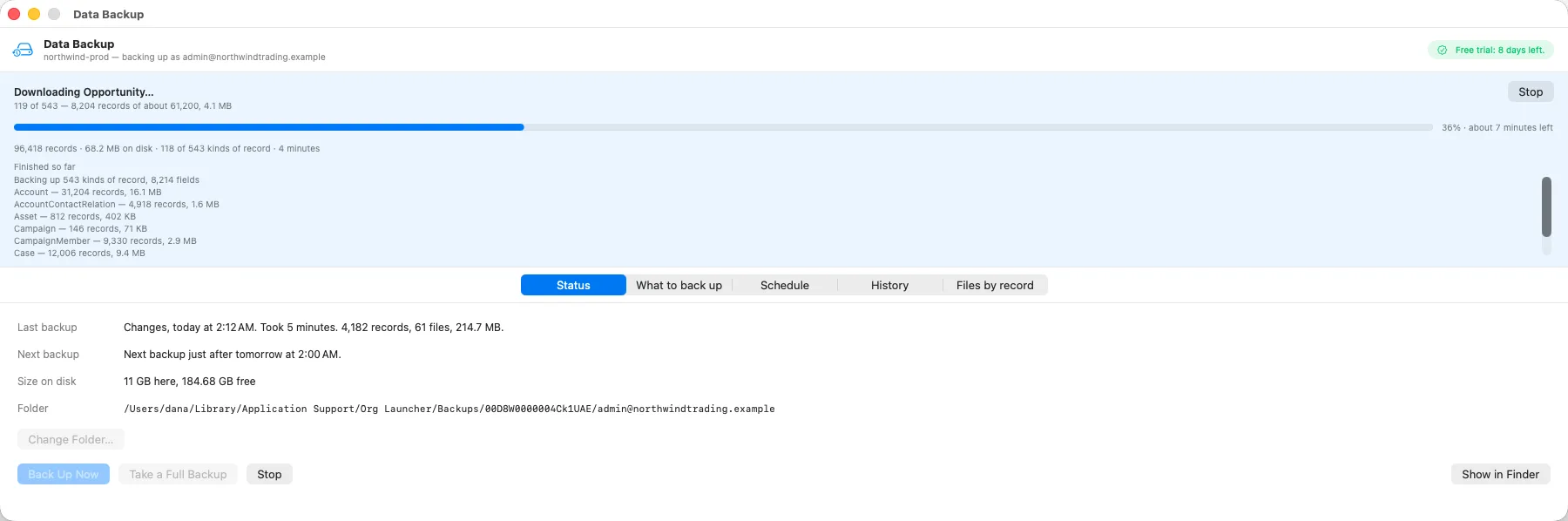
Data Backup is the one paid part of Org Launcher. It copies the Salesforce records your login can see into ordinary CSV files, and the org’s files as they are, into a folder on your Mac. It runs every hour, every day or every week, even with the app closed. None of your records or files are sent to us. When records are deleted or changed by mistake, pick the backup from before it happened and put them back. Try it free for 14 days in the app, with no card. Then subscribe for $10 a month. Everything else in Org Launcher is free.
1.1.16 · 12.3 MB · macOS 14 or later · Apple Silicon and Intel
Signed by DewWow and checked by Apple, so there are no steps in System Settings. How to install
Needs a Mac with macOS 14 or later, the free Salesforce CLI, and a Salesforce org with API access. What you need
Data Backup and Salesforce's Weekly Data Export
Every Salesforce org can export its data from Setup, under Data Export. It is free, and it runs on Salesforce's servers, so no computer of yours has to be switched on. Data Backup does the same job differently. The table compares them, using what Salesforce's own help pages say about the export.
| Salesforce's Weekly Data Export | Org Launcher Data Backup | |
|---|---|---|
| How often | Once every 7 days on Enterprise, Performance and Unlimited. Once every 29 days on Professional and Developer. | Every hour, every day or every week, or only when you press the button. |
| Where it runs | On Salesforce's servers. Your computer can be off. | On your Mac, while it is switched on and you are logged in. Org Launcher itself can be closed. |
| When it is ready | Salesforce does not promise a time. A late export can cause the next scheduled one to be skipped. | It starts at the Mac's next hourly check after it is due. History shows when each backup ran and what it copied. |
| Getting the files | An email, then zip files, most of them up to about 512 MB. You download them one at a time, with a 60-second wait between downloads. | Nothing to download. The CSV files are written straight to a folder you choose. |
| How long you have | The zips are deleted about two working days after the email, or as soon as the next export is queued. After that nobody can get them back. | Backups stay on your disk under the rule you choose. By default it keeps the last three complete backups and the changes since each. |
| Files and attachments | Optional, with two tick boxes. | On unless you switch it off: every file the backup's login can see, every version unless you choose the latest only, and a list of which record each Salesforce File is linked to. |
| New objects | "Include all data" picks the objects that exist when you tick it. Objects created later need the box ticked again. | The object list is worked out again on every backup, so with the default list a new custom object is in the next one. |
| Deleted records | Records in the Recycle Bin are not included. | Each backup lists what was deleted since the one before, and warns you when more records go than usual. |
| Who can run it | Users with the Weekly Data Export permission. By default only the System Administrator profile has it. | Any login with API access. The backup holds what that login can see. The window says when the login is missing View All Data or Query All Files, but it cannot check field-level security. |
| Putting data back | No restore. You load the CSV files back yourself, for example with Data Loader. | Restore from This Backup puts deleted records back and puts chosen fields back. See below for how far that goes. |
| What both leave out | Formula and roll-up fields. Your setup: objects, fields, page layouts, flows and code. | The same, except that some setup, such as profiles and Apex code, comes along as CSV rows that cannot be deployed back. Formula and roll-up fields can be added for reporting, but they can never be put back. |
| Price | Included with Salesforce. | $10 a month, after a 14-day free trial in the app. |
What it backs up
A backup takes every record and every file its login can see in the objects it covers, and a list of which record each Salesforce File is linked to. You do not have to pick objects. The default list is every object that Salesforce marks as readable and safe to copy, plus Files, attachments and documents by name. On the developer org we measure against, that is 541 objects out of the 1,514 that org can read in bulk, and every custom object that holds records is among them. Your org's numbers will be different. Archived tasks and events are included too.
Every field this login can see comes along, with three exceptions. Address and location fields are saved as their parts, such as street, city and postal code. Binary content is never put in a CSV: the contents of Files, attachments and documents arrive as real files instead. Formula and roll-up fields are left out, because Salesforce works them out for itself and they cannot be put back.
Files come down as real files: Salesforce Files with every version, unless you choose the latest only, plus attachments and documents. They are kept once, in a Files folder beside the dated backups, named with their Salesforce Id and their real name. Files.csv lists each one with its size, and its checksum where Salesforce publishes one. FileLinks.csv pairs every Salesforce File with each record it is linked to, including that record's object and name. For an attachment, the record it belongs to is in the ParentId column of Attachment.csv. In the backup window, Files by record answers which record a Salesforce File was linked to, and the other way round, from the backup itself, even for an org nobody can log in to any more.
Two things are off unless you switch them on. Each is one tick away:
- Field history and Chatter feeds. On the developer org we measure, these add another 331 objects.
- Formula and roll-up fields, for reporting only.
What it does not back up
Your setup, also called metadata, cannot be put back from a backup. Flows and page layouts are not in it at all. Some setup comes along as rows in the CSV files, such as profiles, record types and the text of Apex code, because Salesforce offers them like records, but none of it can be deployed back to an org. Records of custom settings are included, because they are data. A handful of objects Salesforce will never hand over whole, such as RecentlyViewed and UserRecordAccess, are left out by name. The sharing tables, such as AccountShare and OpportunityShare, and Libraries, Reports and Dashboards are not backed up either. The app has no setting to add them. If Salesforce refuses one kind of record during a backup, the rest of the backup still finishes. History names the one that was missed, and the backup’s manifest.json says why.
Ordinary files you can open without this app
Each backup is a folder of CSV files, one per object, with column headings that are the fields' API names. Excel opens them, Data Loader reads them, and so does Org Launcher's own Data Import. Nothing is in a format only we can read. When a backup holds documents, each dated folder has a short READ ME.txt that says where they are kept, because a dated folder copied on its own holds every record and none of the files.
Where the backups go, and who can see them
To a folder on your Mac. By default that is inside your Library folder. You can choose another folder or an external drive, either for new backups in Settings or for one org's backup in that org's backup window. Each backup keeps the folder it was set up with, so changing the default never moves a backup you already have.
It never comes to us. The records go from your org straight to your disk. The app uploads nothing, there is no cloud account, and we never see a record of yours. If you choose a synced folder, such as iCloud Drive, that service copies the backup like anything else in it.
The app warns you when the folder you pick is in Documents or on the Desktop, which macOS protects, or on iCloud Drive, a removable disk or a network share. A backup running with nobody at the Mac cannot answer a permission prompt or plug a disk back in. When an external drive is not connected, the backup waits for it and says so. It never fills your startup disk instead, and a scheduled backup carries on by itself when you plug the drive back in. There is an Eject button beside the folder for unplugging the drive safely.
Changing an existing backup's folder moves nothing. The old backups stay complete where they are, the app tells you that before it changes anything, and the next backup in the new place is a complete one.
Keep a second copy. A backup is only as safe as the disk it is on. If the Mac is lost or the drive fails, the backup goes with it, so keep another copy: your Mac's own backup, or a second drive. The app adds no encryption of its own. The backups are plain CSV files, so anyone who can open that folder can read them. Keep them on an encrypted disk, such as a Mac with FileVault switched on, and treat the folder as client data.
Every Salesforce call the backup makes is listed on the APIs page, and what the app sends anywhere else is on the privacy page.
How often it runs, and what it costs your org
Choose every hour, every day at an hour you pick, every week on a day and hour you pick, or only when you press the button. macOS starts a scheduled backup whether or not Org Launcher is open: the Mac checks once an hour and runs whatever is due. That needs the Mac to be switched on and you to be logged in to it. A Mac that is asleep or switched off does not back up. A backup that came due meanwhile runs within an hour of the Mac waking up or of you logging in again. Every org with a schedule is listed under Being Backed Up in the sidebar, with when it runs next, how the last backup went and how much is stored.
The first backup is a complete one. After that it fetches only what is new, what changed and what was deleted, and it takes a complete one again every four weeks unless you change that to every week or never. So an hourly backup is usually a small one. If a backup is interrupted, by sleep, Stop, a full disk or the network, the next one carries on where it stopped, without skipping a page or saving one twice.
Backups of changes go ahead on battery. A complete backup, and the first download of an org's files, wait for mains power. They also wait while the Mac is on a metered connection, such as a phone hotspot. Those are two settings, both on to start with, in Settings under Backups. You get a notification if a scheduled backup fails, and another when it works again. The app asks for permission to send them when you switch a schedule on. Waiting for power or a network is not a failure, so a wait sends nothing until it has gone on long enough to matter. If the Salesforce CLI login expires, scheduled backups stop and tell you, until you log in again.
What it asks of your org
Before reading anything, each backup asks Salesforce how many records it is about to read from each object, 25 objects to a request. So an object with nothing to read costs nothing more. Small objects are read with ordinary queries and large ones with Bulk API jobs, and up to six objects are read at once.
Files cost more. Fetching each file's contents is one API request, so the backup checks the org's daily API allowance as it goes and pauses file downloads when less than a fifth of it is left. That leaves the rest of the allowance for your org's own integrations, and the next backup carries on from there. That fifth is fixed in the app, with nothing to set, and it applies to file downloads only, not to reading records. On an org with many files, the first backup's file downloads can take more than a day for that reason.
A file that fails is tried once in each backup. After three failed tries it is left out with the reason recorded, and the next complete backup tries it again. A file already on your disk is never fetched again and never written over.
Getting records back
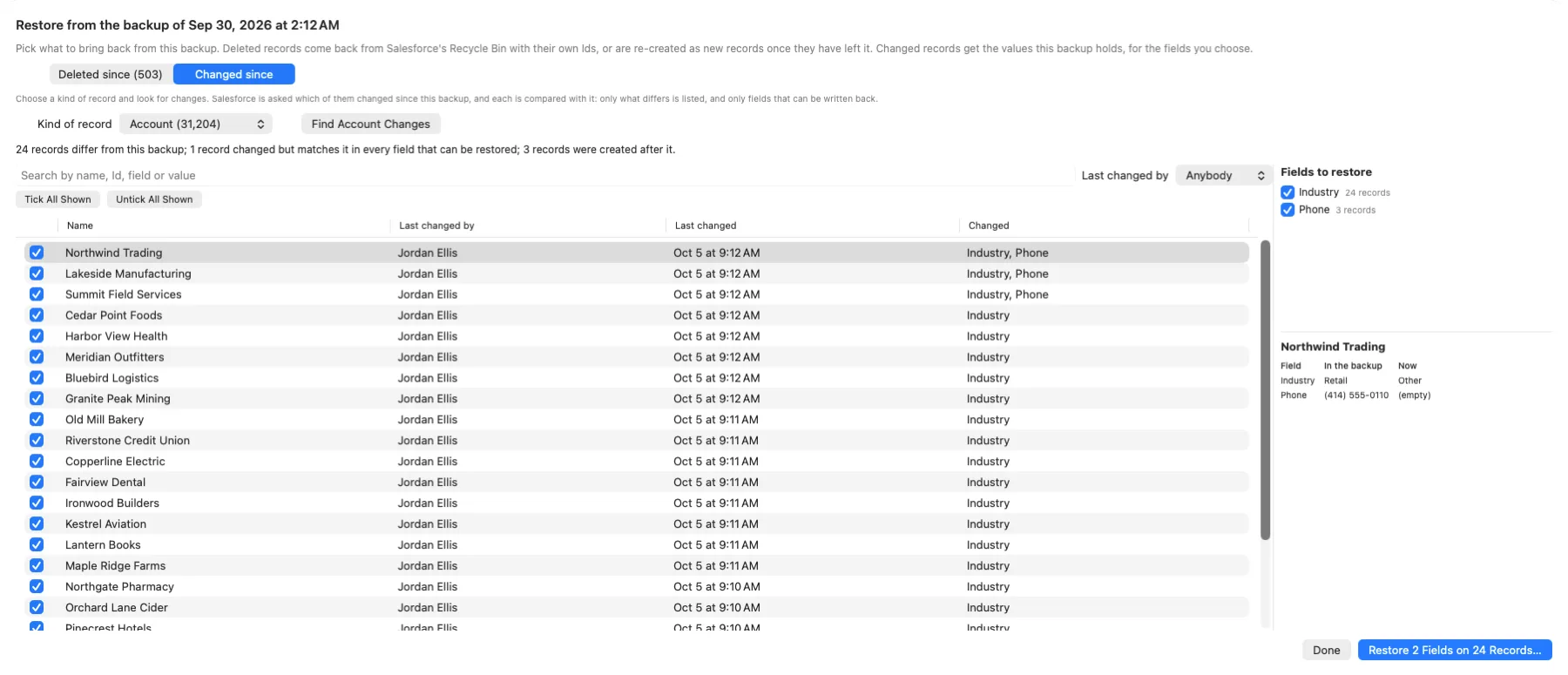
Open History in the backup window, pick the backup from before the mistake, and choose Restore from This Backup. It has two tabs, Deleted since and Changed since. Each lists records by name, with a search and a tick box on every one. Nothing changes in Salesforce until you have ticked records and confirmed a sentence that names how many and which org. Restoring works as the login the backup was taken with, in the org it came from. Anything your org does when a record is undeleted, created or updated, such as a flow, a trigger or a validation rule, runs as it would for an edit by hand, so some records may be refused. Each refused record says why.
Deleted since: Put Back, while records are still in the Recycle Bin
Salesforce keeps deleted records in its Recycle Bin for 15 days by default, or 30 if Salesforce Support has extended it for your org. While a record is still there, Put Back returns it through Salesforce's own undelete, with its original Id and with whatever was deleted along with it. Salesforce also puts back links to it from other records: every custom lookup and a set list of standard ones, unless someone has pointed that field at another record since. Before saying a record could not be put back, the app checks the org, because a record can come back with its parent.
Deleted since: Re-create, once records have left the Recycle Bin
Once a record has left the Recycle Bin, or someone has emptied it, no tool can give the record its old Id back. Re-create rebuilds it from the last backup that held it, as a NEW record with a NEW Id. Parents are created before children, and the records you re-create together are linked to each other again. Only fields Salesforce lets you set on a new record are sent, and records already in the org are skipped, so nothing is created twice. Encrypted text fields are left empty, because a backup can hold the mask Salesforce shows instead of the value. If the owner is no longer active, or a linked record is gone, the record is tried once more without that field, and the result says so. You can save a list of every old Id and its new one, for anything outside Salesforce that stored the old Id.
Changed since: put chosen fields back
After a wrong import or mass update, choose a kind of record. Salesforce is asked which of those records changed since the backup, and each one is compared with it. Only fields that differ and can be written back are listed, with the value in the backup beside the value now, and who changed the record last. Tick the records and the fields to restore. Only the chosen fields that differ on each record are written.
Before anything changes, the values those records hold now are saved to a file in your Downloads folder, under Org Launcher Backups. Org Launcher's Data Import can load that file to undo the restore. One look reads up to 20,000 changed records, newest first, and Look Further Back carries on from there.
A complete copy as of any backup
Pick any backup and save a full set of CSV files as your org stood at that backup. It is built from the last complete backup before it and the changes between the two. You do not have to work out which folders to stitch together. The copy is complete in records; the documents stay in the Files folder.
What restoring does not do
Worth knowing before you need it. Restoring does not:
- Re-attach files or attachments.
FileLinks.csvsays which records each Salesforce File was linked to, andAttachment.csvsays which record each attachment belonged to, so that can be done by hand or with Data Loader. - Give a purged record its old Id. Re-created records have new Ids. Other records in Salesforce lost their link to it when it was deleted, and only records you re-create together are linked again. Anything outside Salesforce that stored the old Id still has the old one.
- Restore your setup. Flows and page layouts are not in the backup, and the setup that comes along as CSV rows cannot be deployed back.
- Restore into a different org or a sandbox. It writes back to the org the backup came from.
- Undo a merge. A record merged away can be put back from the Recycle Bin, but what moved onto the record you kept stays there.
- Put back encrypted text fields. A backup can hold the mask Salesforce shows instead of the real value, and writing the mask back would destroy the value. So Changed since never compares or offers them, and Re-create leaves them empty and says so.
- Happen in one click. You see the records, tick them and confirm.
It tells you when records go
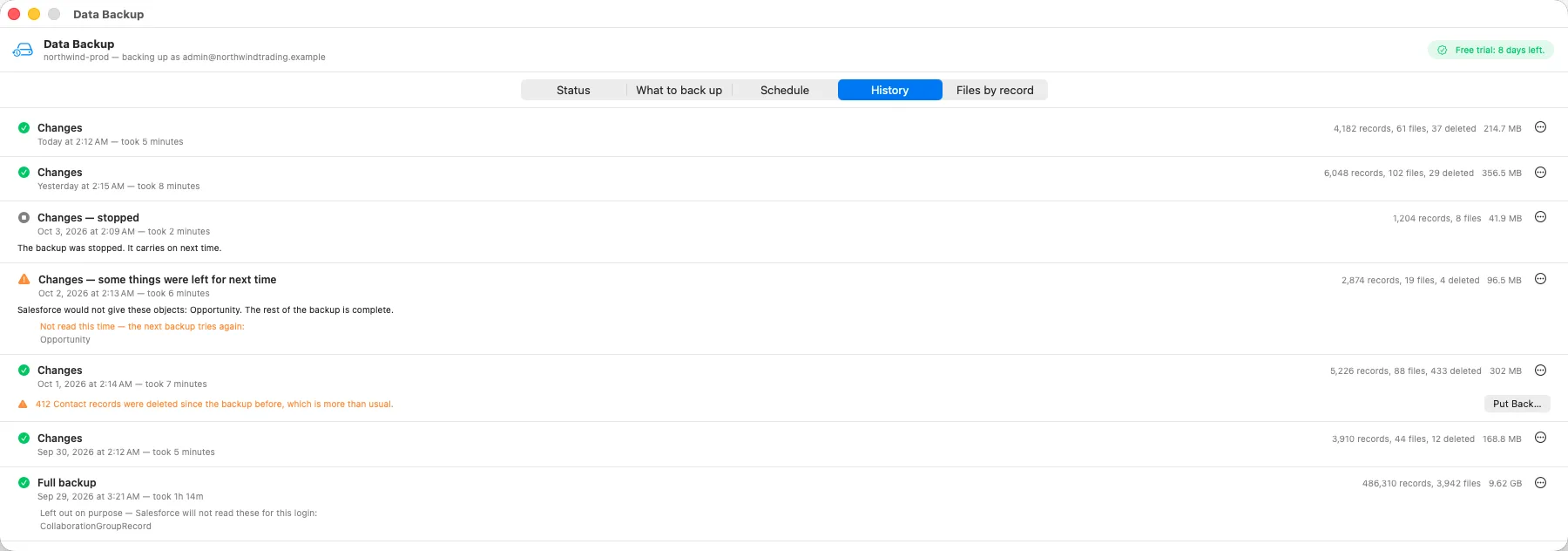
Each backup lists the records deleted since the one before, in Deleted.csv. When more go than usual, it warns you: 100 or more that are also at least 5% of that kind of record in the backup, or 1,000 or more at any size. A scheduled backup sends a notification, at most once a day for each org and kind of record. After Back Up Now, the message says it. The Status pane, History and the Being Backed Up card in the sidebar say it too, and the card's icon turns orange.
In History, the warning has a Put Back button beside it, which opens Restore from This Backup on the backup from before the deletions. With an hourly or daily schedule, the warning usually comes while Salesforce still holds the records in its Recycle Bin, so they can come back with their Ids. A planned clean-up needs nothing from you.
Records that are simply no longer visible, found only by comparing this backup's list of Ids with the last one, are called missing, not deleted. A sharing or permission change hides records in exactly the same way, and calling that a deletion would teach you to ignore the next warning.
What $10 a month covers, and what happens if you stop
One subscription covers Data Backup on two computers, for as many orgs and as many logins as you like. The 14-day free trial is in the app: it starts the first time you back up an org, with no card and no account. Subscribing in the shop charges the first $10 straight away, so start with the trial. You buy and cancel the subscription from your DewWow account.
Nothing is deleted and nothing is locked. Every backup already on your disk stays there and stays readable by anything that opens a CSV. Saving a complete copy and Restore from This Backup both keep working if a subscription ends. Only new backups stop, and the backup window and Settings both say why.
Many backup services charge per Salesforce user, some with a monthly minimum or a storage limit, and many ask you to contact sales for a price. Data Backup has one price that does not change with the number of users in an org or the number of orgs. Your own disk is the only storage limit. Everything else in Org Launcher is free, including finding and merging duplicate records.
Subscribe to Data Backup for $10 a month, or download Org Launcher and start the trial.
Is it right for you?
A good fit if
- You are an admin or a consultant who wants an org's records and files out of Salesforce on a schedule, without a cloud contract.
- You use the Weekly or Monthly Data Export today and are tired of downloading zips before they are deleted.
- You look after many orgs. One subscription covers all of them.
- You must keep client data on your own machines.
Not a fit if
- You need your setup (metadata) backed up, sandboxes filled from a backup, or records restored into a different org.
- You need a vendor's compliance certificates, such as SOC 2, a HIPAA agreement or FedRAMP. DewWow holds none for this.
- You need copies kept off-site by the vendor, or backups that run with no computer switched on.
- You use Windows. Data Backup is not in the first Windows version of Org Launcher, which is coming in the near future with no date yet.
- Your org has no API access. Salesforce includes it in Enterprise, Unlimited, Performance and Developer Editions, and in Professional Edition only with its API add-on.
Whose backup it is
A backup belongs to one login, because two users of the same org see different records and different fields. The window says which login it is backing up as. When it opens, it asks Salesforce whether that login has the View All Data and Query All Files permissions, and says so plainly if it does not, before the first backup. Without View All Data, the backup holds only the records that login can see. Without Query All Files, it holds only the files shared with it.
What the app cannot check is field-level security. A field hidden from that login is not in its backup, and nothing tells you. Back up as a login that can see every field you care about.
Security and privacy
Org Launcher logs in through the Salesforce CLI login you already have, and stores no password. The access token it uses is held in memory only, never written to disk and never logged. Nothing it backs up is ever sent anywhere, except back into your own org when you restore, and we have no way to read your backups.
To check a subscription, the app sends one request, and only after you have typed a subscription key in. Its body holds your key, a one-way code standing for the computer, and the app's version number. It carries no org name, no username and nothing from inside Salesforce. If you never enter a key, the app never contacts our subscription service. The full list of what the app sends is on the privacy page, and every Salesforce call is on the APIs page.
What you need
- A Mac with macOS 14 or later, Apple Silicon or Intel.
- The free Salesforce CLI. Each org is logged in through the CLI, and Org Launcher’s Add Org button does that for you. Org Launcher stores no password of its own.
- An org with API access: Enterprise, Unlimited, Performance and Developer Editions have it, and Professional Edition has it only with Salesforce’s API add-on. The login you back up as also needs the API Enabled permission.
- Since September 2025, logging in through the Salesforce CLI needs the Approve Uninstalled Connected Apps permission. The standard System Administrator profile has it. For anyone else, an admin can install the Salesforce CLI app once, in Setup under Connected Apps OAuth Usage. If your org uses API Access Control, the permission is Use Any API Client instead.
- For scheduled backups, open Org Launcher from your Applications folder, not from the disk image, and stay logged in to the Mac.
- Room on the disk you back up to. Back Up Now works out the size first, and refuses a backup that will not fit rather than starting it.
Common questions
Does Salesforce back up my data?
Salesforce's own Trailhead training says that protecting your data is the customer's responsibility. It also says the Recycle Bin keeps deleted records only for a limited time and does nothing for records that were changed, and that the export gives you snapshots with no automated tools to recover from them. What comes with every org is the Recycle Bin, which keeps deleted records for 15 days by default, or 30 if Salesforce Support extends it, and the Data Export: weekly on Enterprise, Performance and Unlimited, and every 29 days on Professional and Developer. Salesforce also sells backup as paid add-ons. Org Launcher's Data Backup is another choice: a copy of your records and files on your own Mac, every hour if you like, for $10 a month.
What does Data Backup actually back up?
Every record and every file the login it backs up as can see, in the objects it covers, and a list of which record each Salesforce File is linked to. Objects are chosen for you: every object that Salesforce marks as readable and safe to copy, plus Files, attachments and documents by name. On the developer org we measure against, that is 541 objects out of the 1,514 that org can read in bulk, and every custom object that holds records is among them. History and feed records are left out unless you ask for them, which on that org would add another 331. Four things worth knowing are not backed up at all: the sharing tables (AccountShare, OpportunityShare and the rest), Libraries, Reports and Dashboards. The first backup is a complete one. After that it fetches only what is new, what changed and what was deleted, and it takes a complete one again every four weeks unless you change that. Formula and roll-up fields are left out because Salesforce works them out and they cannot be put back, though you can include them for reporting.
Is this a replacement for the Recycle Bin, or for the Weekly Data Export?
It replaces the Weekly Data Export: you can run it hourly instead of weekly or monthly, nobody has to download a zip before Salesforce deletes it, and it keeps a history. It is not a replacement for the Recycle Bin, and it works with it. The Recycle Bin is the only place a deleted record can be restored with the same Id, so when a backup finds records deleted, Put Back in the backup window returns them from there while Salesforce still has them. A backup helps on its own when the Recycle Bin has been emptied, when the deletion is older than Salesforce keeps, or when the problem is changed values rather than deleted records.
How is this different from Salesforce's own backup products?
Salesforce sells backup as paid add-ons, such as Salesforce's Backup and Recover, priced through its sales team. Backup and Recover also copies your setup (metadata) and sandboxes, which Data Backup does not. Data Backup is not meant to replace those. It replaces the free Weekly Data Export: your records as plain CSV files and your files as they are, in a folder on your own Mac, on a schedule, for a published price of $10 a month. The records go from Salesforce straight to your disk and never pass through DewWow.
Can Org Launcher restore a backup into Salesforce?
Yes, records and their values, and it is worth being plain about how far that goes. Pick the backup from before the mistake and choose Restore from This Backup. It lists every record deleted since then, by name. For changed records, you choose a kind of record, and it lists the ones that now differ from the backup, with the fields that changed, up to 20,000 at a time. You tick what you want back. Nothing changes until you confirm a sentence naming how many records and which org. Salesforce keeps deleted records in its Recycle Bin for 15 days by default, or 30 if Salesforce Support has extended it. Records still there are put back with their original Ids, and with whatever was deleted along with them. Past the Recycle Bin, no tool can give a record its old Id back, ours or anyone's. So those records are re-created from the last backup that held each one. They are new records with new Ids. Parents are created before children, and records re-created together are linked to each other again. You can save a list of old and new Ids. Changed records get the fields you choose back from the backup, which is how you undo a wrong mass update, and what they held a moment before is saved to a file first. Files and attachments are not re-attached, restoring writes back only to the org the backup came from, and it does not undo a merge.
Can I get back records deleted more than 15 days ago?
Yes, if a backup from before the deletion still holds them. Salesforce keeps deleted records in the Recycle Bin for 15 days by default, or 30 if Salesforce Support has extended it for your org. Inside that time, Put Back returns them with their original Ids. After it, or once someone has emptied the Recycle Bin, open Restore from This Backup on a backup from before the deletion and choose Re-create. Each record is rebuilt from the last backup that held it, as a new record with a new Id, parents first and linked to each other again, and you get a list of old and new Ids. No tool can give a purged record its old Id back. Files and attachments are not re-attached.
Does it back up files, and can I tell which record a file belonged to?
Yes to both. Files, attachments and documents come down as real files, named with their Salesforce Id and their real name, and a Files list records each one's size, and its checksum where Salesforce publishes one. Salesforce publishes one for its Files but not for attachments or documents, so those are checked against their size instead. A second list pairs every Salesforce File with each record it is linked to, including that record's object and name, so a file is not just a name in a folder. That second list is rebuilt in full on every backup, because Salesforce will not say which file links changed. For an attachment, the record it belonged to is in the backup's list of attachments. Fetching a file's contents is one API request, so the backup watches the org's daily API allowance and pauses file downloads when less than a fifth of it is left, then carries on at the next backup. A file already on your disk is never fetched again and never written over.
Does it back up metadata?
No. Data Backup copies records and files, not your setup. Flows and page layouts are not in it. Some setup, such as profiles, record types and the text of Apex code, comes along as rows in the CSV files, because Salesforce offers it like records, but none of it can be deployed back to an org. Records of custom settings are included, because they are data. Org Launcher's free metadata tools show recent setup changes and compare two orgs, but they are not a backup and cannot put setup back. If you need your setup backed up, Data Backup is not the right tool on its own.
Can it back up on a schedule when Org Launcher is closed?
Yes. Choose every hour, every day at an hour you pick, or every week on a day and hour you pick, and macOS starts the backup for you whether or not the app is open. The Mac has to be switched on and you have to be logged in to it. A Mac that is asleep or switched off does not back up, and a backup that came due meanwhile runs within an hour of the Mac waking up or of you logging in again. Switch the schedule on with Org Launcher opened from your Applications folder, not from the disk image. You get a notification if a backup fails, and another when it works again. Backups of changes go ahead on battery. A complete backup, and the first download of your files, wait for mains power. They also wait while the Mac is on a metered connection, such as a phone hotspot. Both are settings you can turn off, in Settings under Backups. Waiting is not failing, so a wait sends nothing until it has gone on long enough to matter.
Where do the backups go, and how much space do they need?
To a folder on your Mac. By default that is inside your Library folder, and you can choose another folder or an external drive, either for new backups in Settings or for one org's backup in that org's backup window. The app warns you if the folder is one macOS protects, or on iCloud Drive, a removable disk or a network share, because a backup running overnight cannot answer a permission prompt or plug a disk back in. A backup on a drive that is not plugged in waits for it and says so, rather than filling your startup disk instead. The app uploads nothing and there is no cloud account: we never receive a record of yours. Press Back Up Now and it works out first how much disk the backup needs and how much is free, and refuses a backup that will not fit rather than starting it. That size is an estimate. When it is close, the window says the backup may run out of room, and the backup still starts. A backup that does run out of room stops before the disk is full, and the next one carries on where it stopped. Unless you change it, the last three complete backups are kept, with the changes since each. Older ones are removed when a backup finishes and there are more complete backups than the rule keeps. That backup says how many it removed and how much room it freed. If you pick a rule that would remove backups you already have, the app shows what would go and waits for you to agree. Choose "Everything" and nothing is ever removed.
What does Org Launcher send you when I have a subscription?
For the subscription, only what is needed to check it, and only after you have typed a subscription key in. Each check is one request. Its body holds your key, a one-way code standing for the computer, and the app's version number. It carries no org name, no username and nothing from inside Salesforce, and the answer is kept on your Mac so a scheduled backup can check it without going online. If you never enter a key, the app never contacts our subscription service at all. Like every copy of Org Launcher, it also checks for updates and counts launches, and you can switch both off in Settings. Nothing it backs up is ever sent anywhere, except back into your own org when you restore, and we have no way to read your backups.
What does the $10 a month cover, and what happens if I stop paying?
$10 a month covers Data Backup on two computers, for as many orgs and as many logins as you like. The 14-day free trial is in the app: it starts the first time you back up an org, with no card and no account. Subscribing in the shop charges the first month straight away, so start with the trial. You buy and cancel the subscription from your DewWow account. If a subscription ends, nothing is deleted and nothing is locked: every backup already on your disk stays there and stays readable by anything that opens a CSV, and saving a complete copy and restoring both keep working. Only new backups stop, and the backup window and Settings both say why. Everything else in Org Launcher — opening orgs, queries, exports, imports, finding and merging duplicates, metadata, limits — is free.
Questions?
Email ejbantz@dewwow.com and include the version number from Org Launcher > About Org Launcher.
Overview · Find duplicates · Data Backup · Release notes · Privacy · What it calls
DewWow LLC · Wisconsin’s Odoo Partner · dewwow.com
Salesforce and related marks are trademarks of Salesforce, Inc. Org Launcher is an independent product and is not affiliated with, endorsed by, or sponsored by Salesforce, Inc.